 AIImageInsight
As a content creator who's always tweaking photos, I was genuinely excited when Apple Intelligence launched its Clean Up tool. The promise of seamlessly removing unwanted objects from my images was a game-changer—or so I thought. Fast forward to 2026, and honestly? It fell short. It's not a bad feature, but it's not the best. In my daily workflow, I've found a far more reliable and powerful alternative, and the best part is, you've probably heard of it. Let me walk you through why Adobe Express's Remove Object tool has become my go-to solution and why I think you should consider making the switch too.
You might be wondering, why not just use the built-in Apple tool? Isn't it more convenient? Well, let me break down the major hurdles. First and foremost, Apple's Clean Up is trapped behind the Apple Intelligence wall. This means you need a compatible device—think iPhone 15 Pro or newer, or a Mac with an M-series chip. What about everyone with an older iPhone or a different brand of device? They're simply left out. Adobe Express, on the other hand, laughs at these restrictions. It's a web and app-based tool that works on virtually any device with a browser. Got an iPhone 12? An Android tablet? A Windows laptop? No problem. This universal accessibility is a huge win, especially when you need to edit on the go without worrying about your hardware.
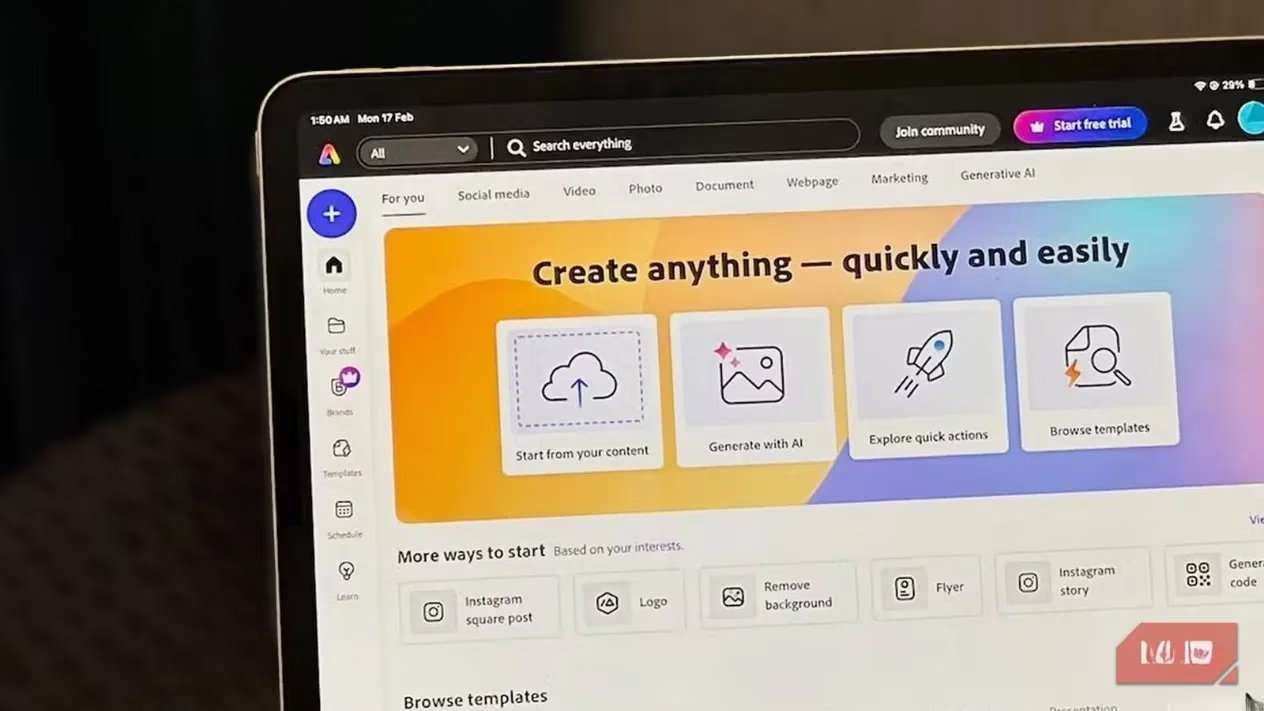
Now, let's talk about the process itself. For me, precision is everything. Here’s a simple comparison of how the two tools handle the user's input:
| Feature | Apple Clean Up | Adobe Express Remove Object |
|---|---|---|
| Target Selection | Tapping, brushing, or circling. Limited brush control. | Manual drawing with adjustable brush size for precision. |
| Initial Approach | Tries to auto-detect objects for you to tap and remove. | Puts you in control from the start. |
| Platform Restriction | Yes. Apple Intelligence devices only. | No. Works on any modern device. |
| Cost | Free (with compatible device). | Completely free, no subscription needed. |
See that? The adjustable brush size in Adobe Express is a complete game-changer. Apple's method feels clunky in comparison. You're either tapping on suggested objects or trying to circle something with a one-size-fits-all brush. Need to remove a thin power cord from a landscape shot? Good luck being precise. With Adobe Express, I can zoom in, shrink my brush to a pinpoint, and trace the object perfectly. This level of control directly translates to better results.
Don't just take my word for it. Let's look at a real-world test I ran. I had a nice photo of my iPad showing a playlist, but an AirPods case was cluttering the corner. My goal was to remove it cleanly.
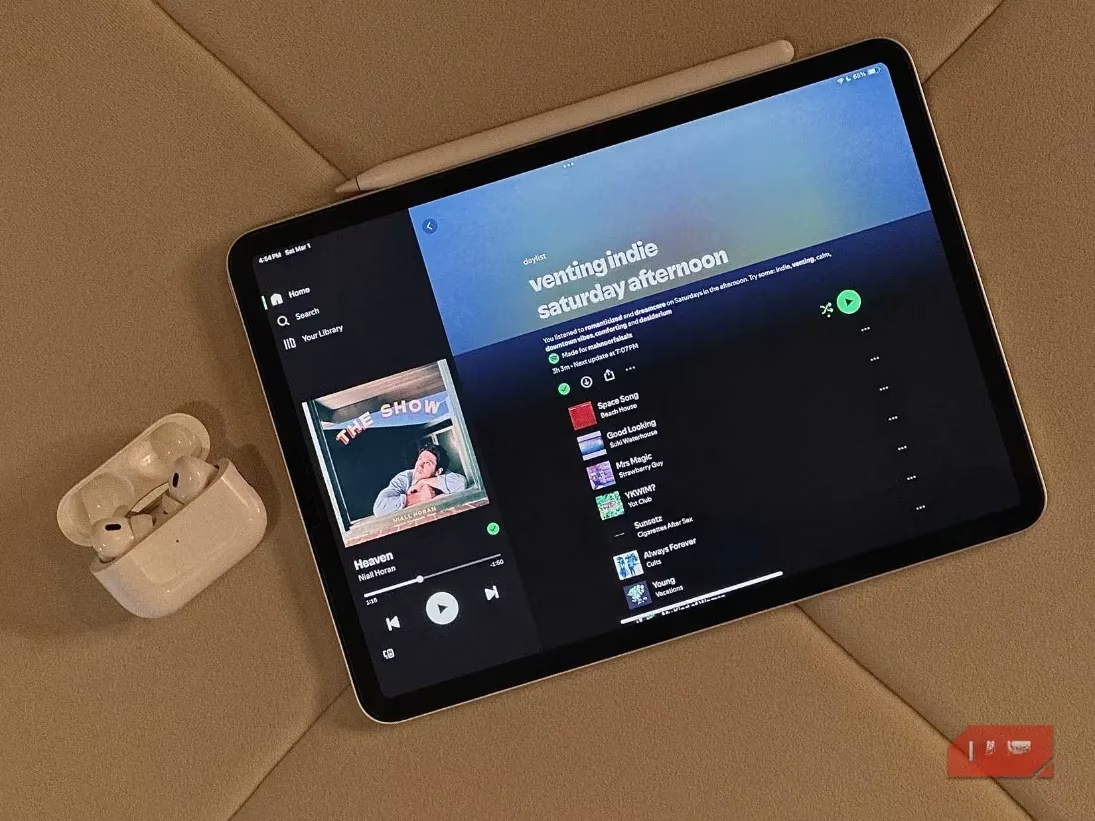
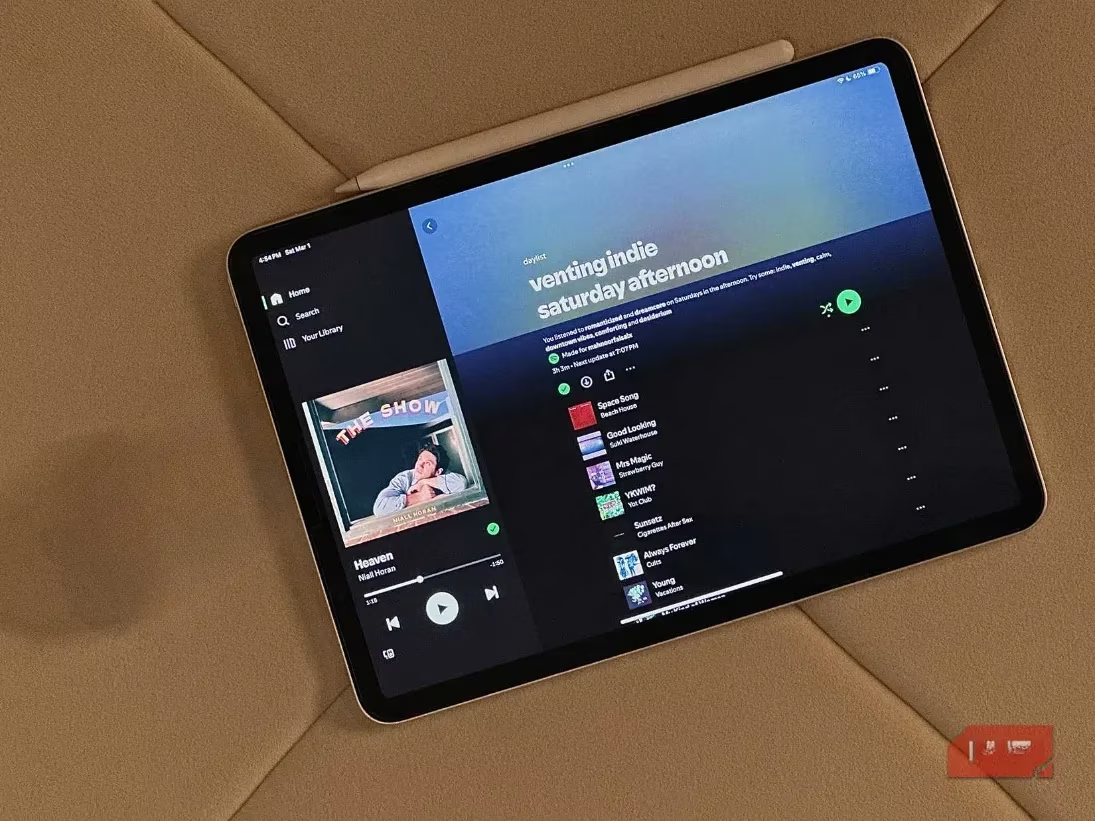
First, I tried Apple's Clean Up. After several attempts—tapping, brushing, circling—this was the best result I could get. The area where the case was removed looks smudged and inconsistent, like a rough patch. The background texture isn't convincingly recreated.
Then, I used Adobe Express's Remove Object. I carefully drew over the AirPods case with a fine brush. The tool generated three options for me to choose from. The result? Much cleaner. The background is more coherently filled in. While there's a slight color variance (which I could easily tweak with another quick edit), the structural integrity of the image is preserved far better. It simply looks more natural.
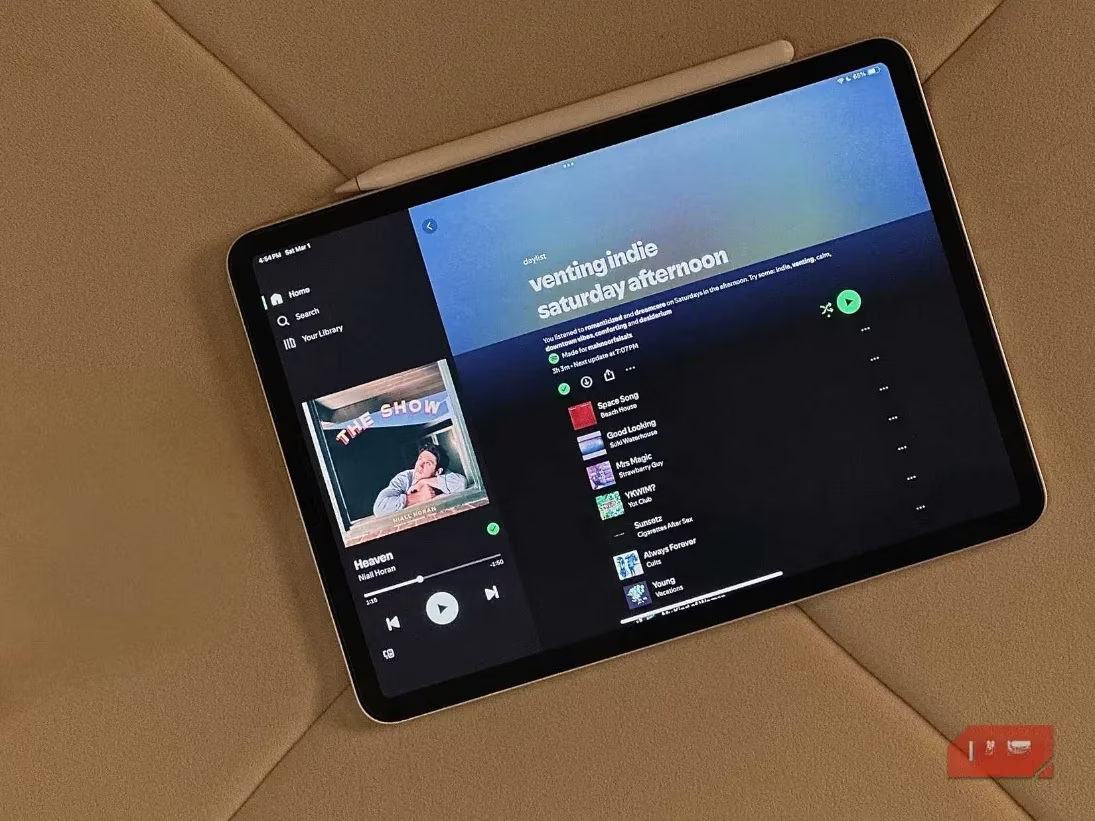
The difference is night and day, isn't it? It's not that Clean Up is terrible; it's that Remove Object is demonstrably superior for this specific task. And the workflow in Adobe Express is so straightforward. You don't need to be a Photoshop pro. Here’s exactly what I do:
-
Open the App: I launch Adobe Express and tap the big + icon to start a new project.
-
Upload My Image: I choose Upload media and pick the photo from my library.
-
Select the Tool: From the bottom toolbar, I select Remove object.
-
Paint the Problem Away: I manually draw over the object I want to vanish. I always zoom in and adjust the brush size for tricky edges! ✏️
-
Review and Choose: I tap Remove, and the AI gives me multiple versions to pick from. If I don't love any, I just swipe and tap More for another set.
-
Save: Once I'm happy, I tap Keep and export my cleaned-up image.
It's that simple. And remember, I'm doing all this for free. No Premium subscription, no paywalls. In a world where every other AI tool has a monthly fee, this is incredibly refreshing.
So, where does this leave Apple's Clean Up? It feels like a first-generation feature—a promising proof of concept that hasn't quite matured. For quick, minor distractions on the latest Apple hardware, it's an okay in-a-pinch option. But for reliable, high-quality object removal that works for everyone regardless of their device? My loyalty is firmly with Adobe Express. It gives me the control and results I need without any fuss. Until Apple decides to add brush controls and drop the hardware restrictions, my editing toolkit has a clear winner. Have you tried both? What's been your experience?
Comments