 AIImageInsight
Let's be real, in 2026, photo editing apps are absolutely overflowing with AI features. It feels like every update brings ten new 'revolutionary' tools that promise to change your life. But after years of testing and editing thousands of photos, I've come to a simple conclusion: most of them are just noise. Flashy extras that look cool in a demo but you'll never use. Honestly, I've found that only a handful of AI features are genuinely game-changers for my workflow. They're the ones that save me hours, fix my mistakes, and actually make my photos look better—not just different. If you're feeling overwhelmed by the AI hype, stick with me. I'm breaking down the seven tools that truly matter.
1. AI Denoise: My Savior for Night Shots 🎇
Hands down, my absolute least favorite part of editing was dealing with noise. Grainy, messy photos from high ISO settings? A total nightmare. That's why when Lightroom dropped its AI Denoise feature a few years back, it felt like a miracle. It's not just a good AI feature; it's one of the best tools in any editor, period.
Using it is stupidly simple. Just head to Noise Reduction > Denoise and slide the bar. For my handheld night shots (I'm often at ISO 1000+), I crank that slider pretty far right.
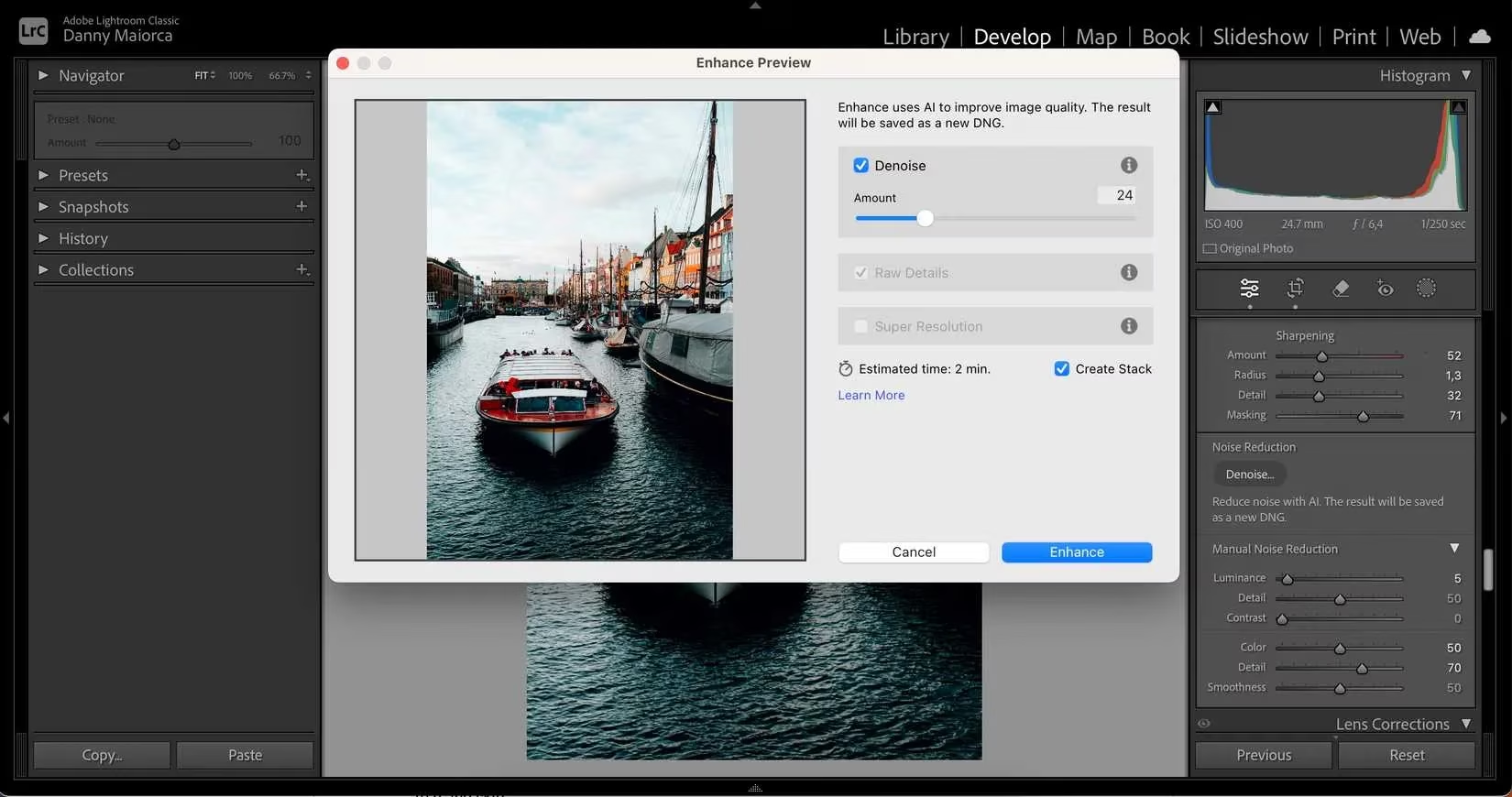
The preview is key. You can zoom in on tricky areas like buildings or textures. Pro tip: Don't overdo it! Too much denoising can make your photos look like a weird plastic painting. It's about balance. While Lightroom's version is my go-to, tools like Picsart and AVCLabs PhotoPro have their own solid versions too. A small gripe? I still wish the mobile apps had the full desktop power.
2. The Humble Auto-Enhance: Don't Sleep On It 🤖
Okay, this one might seem basic, but hear me out. Auto-enhance is everywhere for a reason. When I was starting out, this feature was my silent teacher. It showed me how sliders for exposure, contrast, and color could work together. I'd often use the auto-enhanced version as my final edit! Now, even as a more experienced editor, I use it constantly as a starting point for quick edits.
-
Where to find it: Literally everywhere. Your phone's gallery, Lightroom, Canva, Photoshop Express.
-
Beyond the basics: Some apps, like Photoshop, let you auto-enhance specific things like colors or contrast. It's a fantastic one-click fix for a dull photo before you dive into your own style.
3. AI Spot & Blemish Removal: Bye-Bye, Unwanted Guests 👋
Ugh, sensor spots on a sunny day at f/16. Or a random blemish that just has to be in the shot. It happens to the best of us. Manually healing each one used to be a soul-crushing chore. Enter AI spot removal.
In Lightroom, you just click on the spot. Poof. Gone. It's that easy.
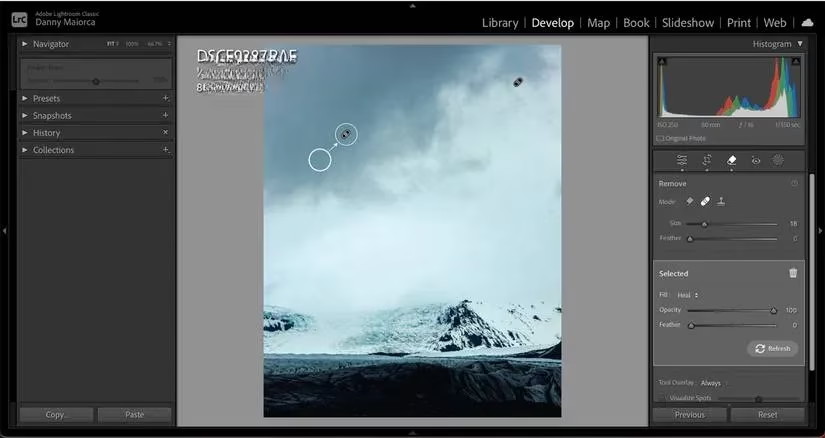
But it gets even better. The Generative AI Remove feature is a total time-saver. You can select a whole bunch of spots at once, hit 'Use Generative AI,' and the app intelligently removes them all, filling in the gaps perfectly. You can even tell it to sample from a specific clean area. Photoshop's Spot Healing Brush works on the same brilliant principle. This feature alone has probably given me back days of my life.
4. AI Masking: Precision Editing on Autopilot 🎭
This is where things get powerful. As I grew as an editor, I wanted to edit specific parts of a photo—just the sky, or just a person's face. I started with manual gradient filters, but AI masking is a whole new level of efficiency.
You tell the AI to "Select Sky" or "Select Subject," and it creates a perfect mask in seconds. Then, you can adjust only that area—brighten a dark sky, warm up a subject's skin—without affecting the rest of the image.
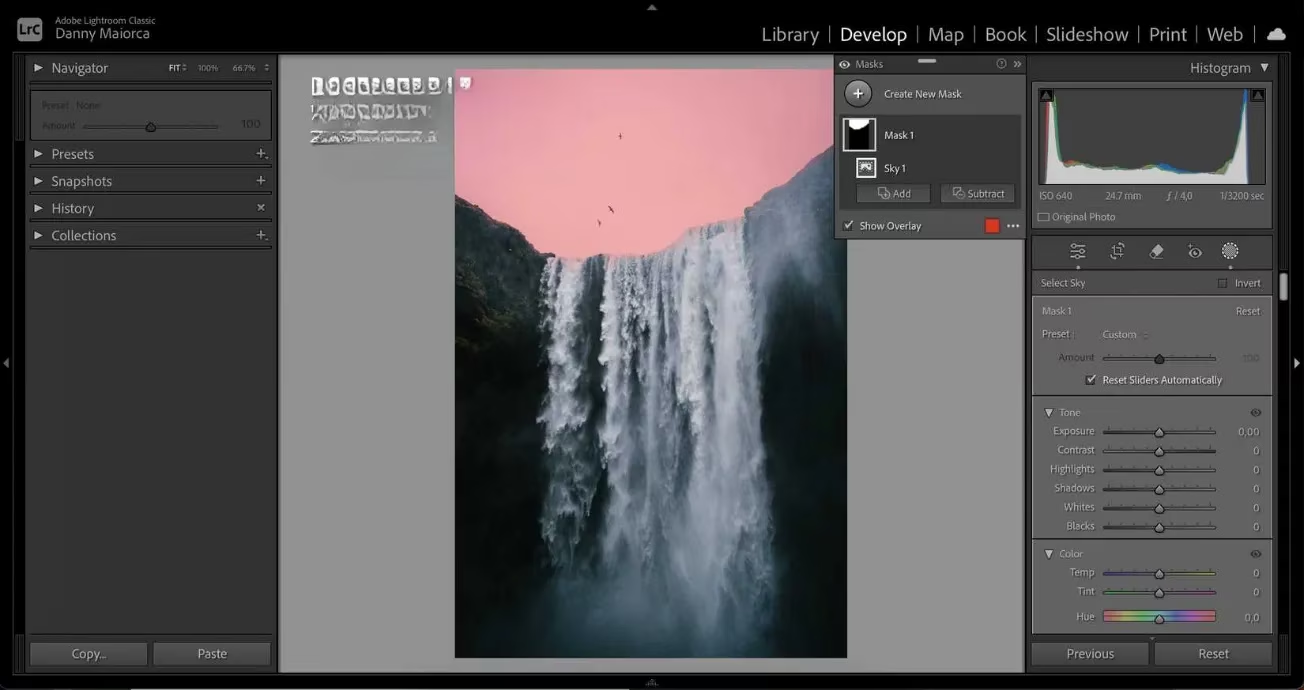
This has been a game-changer for my sunny-day landscapes, where the sky is often blown out or too dark. Lightroom, Capture One, and Luminar Neo all have fantastic implementations of this.
5. Auto-Straightening: The Unsung Hero 📐
I shoot 99% of my photos handheld. Tripods are for very specific moments (hello, astrophotography!). So, naturally, not every horizon is perfect. Even with all my experience, auto-straightening is always my first edit.
I apply it, and 90% of the time, it's spot-on. It's a tiny thing, but a crooked photo just feels off. This tool is in virtually every editing app, and it's one you should never ignore. It sets a clean, professional foundation for everything that follows.
6. AI-Powered Clone Stamp: Duplicate the World ✨
Ever wanted to copy a flower, a cloud, or a brick to fill an empty space? The Clone Stamp tool has been around, but AI has made it smarter and more seamless.
My workflow in Photoshop: Hold Option, click to sample, then paint to clone. The AI helps blend the new element so it doesn't look like a obvious copy-paste job. It's perfect for:
-
Duplicating small objects (flowers, leaves)
-
Extending patterns (brick walls, wooden planks)
-
Filling in gaps in landscapes
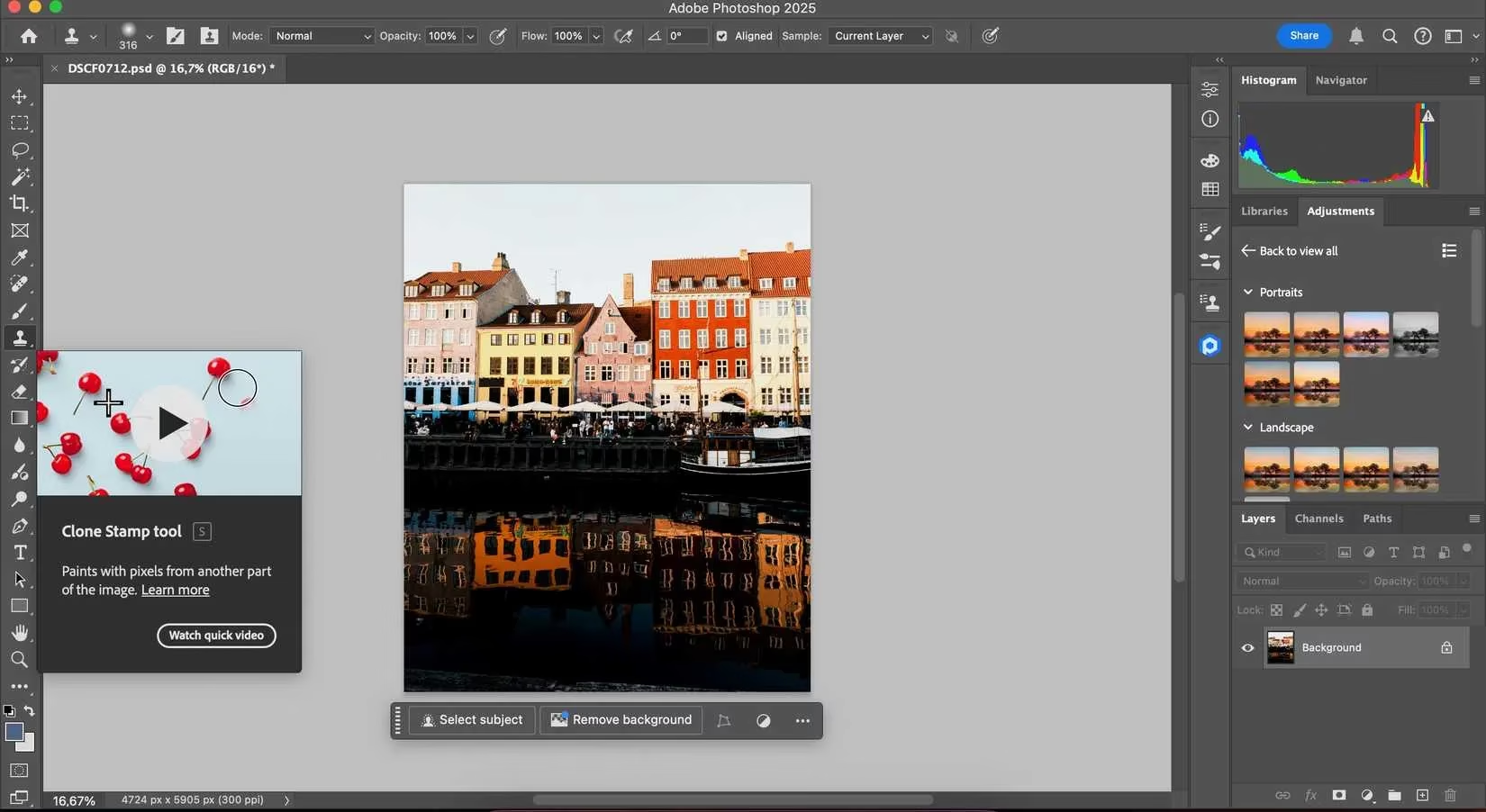
It's a creative powerhouse that feels like magic.
7. Recommended Presets (The Smart Way) 🎨
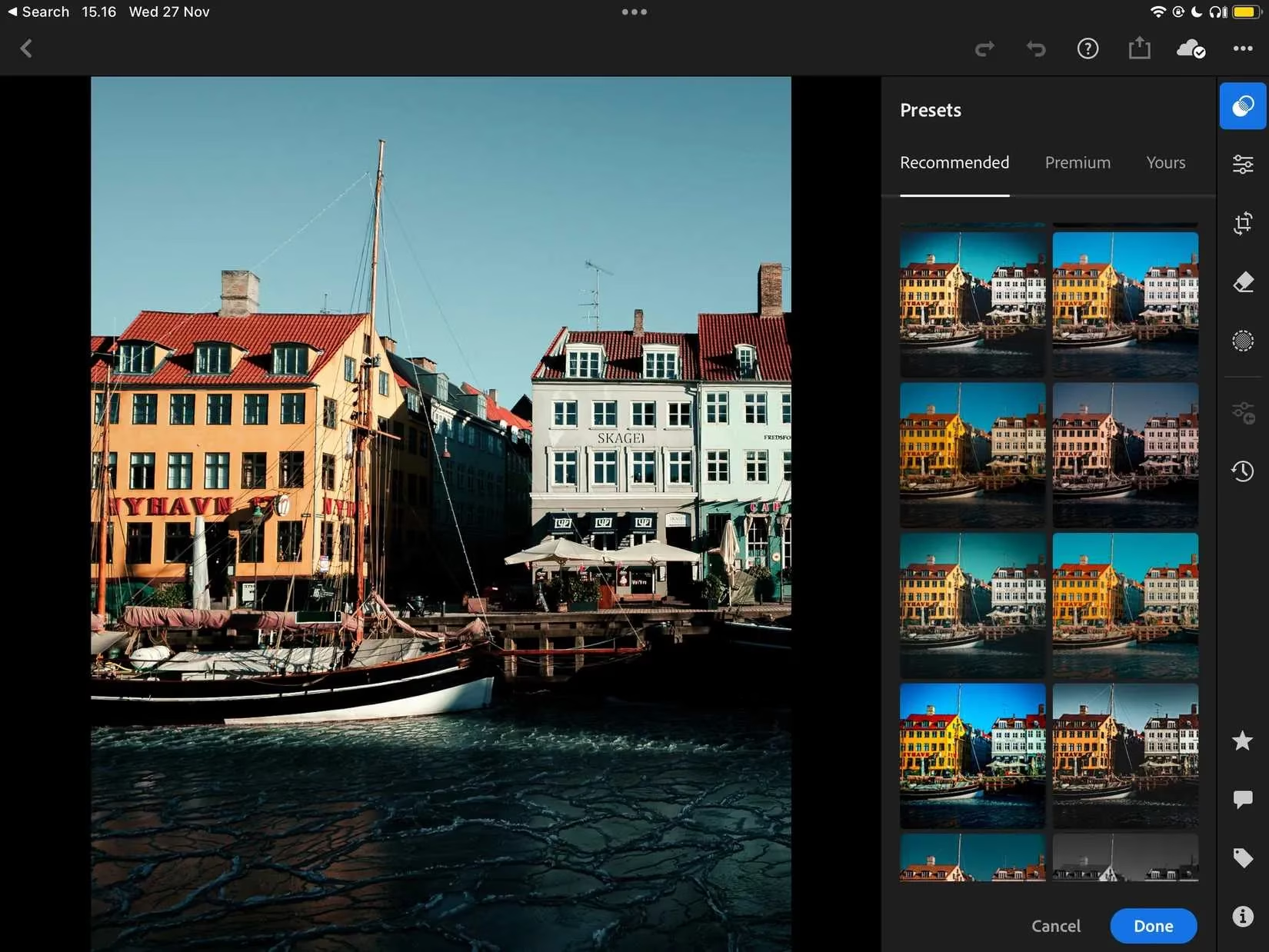
I have a huge collection of presets. Sometimes, scrolling through them all is overwhelming. Lightroom's mobile app has a genius feature: Recommended Presets.
You tap the Presets tab, and the AI analyzes your photo—the lighting, colors, subject—and surfaces a shortlist of presets that would actually work well with it. It's like having a stylist for your photos. I find it works incredibly well with smartphone images, giving you pro-looking starting points in seconds.
So there you have it. In a world of endless AI bells and whistles, these are the seven features that have earned a permanent spot in my editing toolkit. They're not about replacing creativity; they're about removing the tedious friction so your creativity can actually flow. They help you fix the unfixable, edit with precision, and discover new styles—all while saving you a ton of time. Focus on mastering these, and you'll be editing like a pro in 2026, no matter what flashy new tool they try to sell you next. ✨
Comments