 AIImageInsight
Let me paint you a picture, folks. It’s 2026, and AI image expansion has gone from party trick to everyday sidekick. I’ve spent way too many evenings stretching the edges of random photos—cats, coffee mugs, one very suspicious beach sunset—so you don’t have to go in blind. The big showdown: Adobe Photoshop’s Generative Expand versus Canva’s Magic Expand. Both promise to fill in the blanks outside your original frame, but one of them is a precision instrument and the other is more of a happy-go-lucky improviser. Let’s get into it, shall we?
The Setup: Finding the Dang Buttons
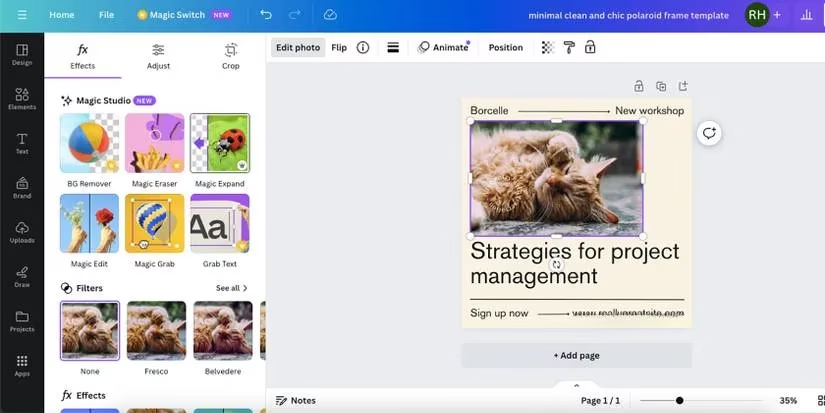
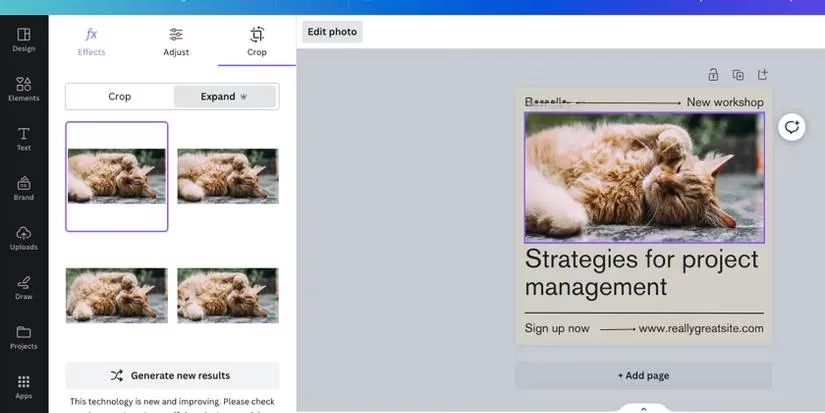
Canva, bless its heart, likes to keep things friendly. In 2026, you hop into the Canva editor, drop an image onto your artboard, select it, and head to Edit Photo > Magic Expand. It’s so straightforward I could almost do it while half asleep. The catch? Magic Expand only plays ball with standalone images. Try it on an image tucked inside a frame or grid, and Canva will give you the digital equivalent of a shrug. I learned that the hard way.
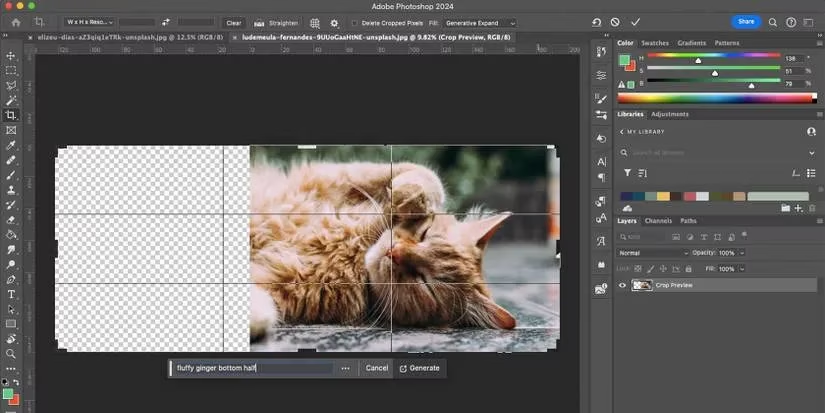
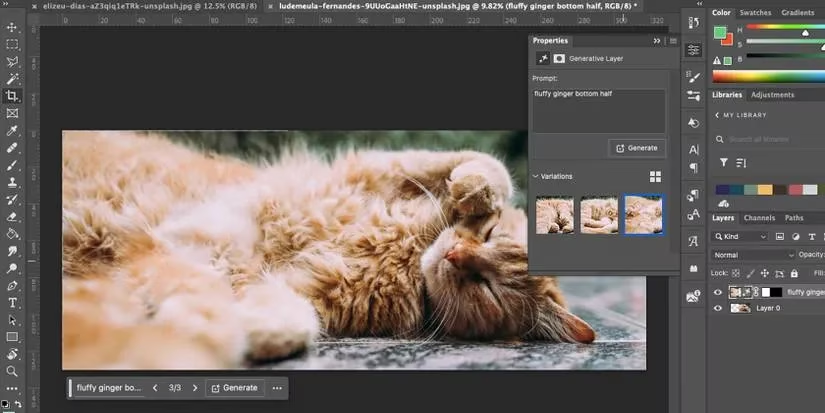
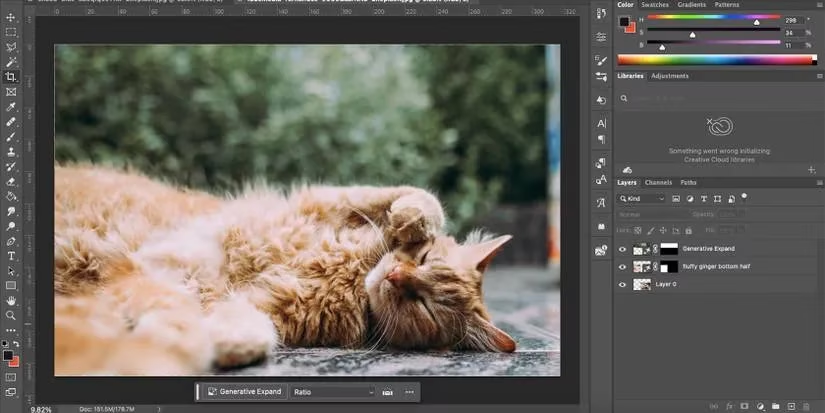
Photoshop, on the other hand, expects you to know the secret handshake. Make sure you're on a recent version—otherwise the AI features might be MIA. Then select the Crop tool and, instead of cutting in, drag outward to create breathing room. Tap Generate, optionally add a text prompt, and boom: Firefly does its thing. It’s not hard once you know the move, but there’s a very Adobe-style learning curve: one wrong click and you’ve cropped your model’s left eyebrow into oblivion.
Show Me the Money
Let’s talk cash, because nobody wants to melt their wallet over a magic button.
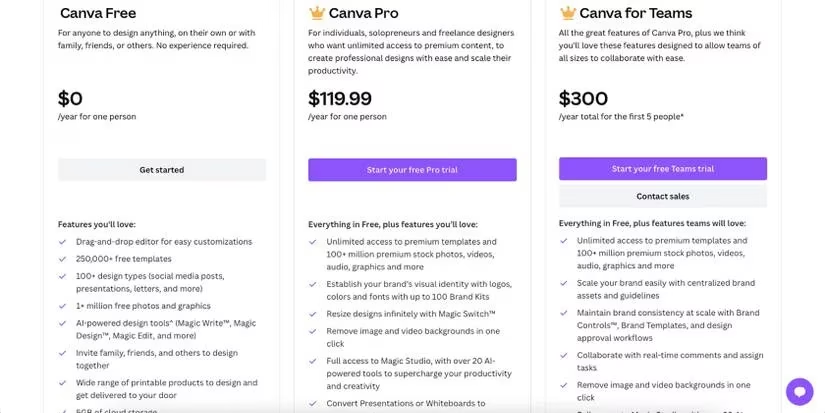
Magic Expand is not free, folks. You need Canva Pro, which has been running around $14.99 a month for a solo account. If you’re already living in Canva daily, that’s a no-brainer. You also get a truckload of templates, brand kits, and other AI-powered goodies. For a one-person design shop, it’s pretty sweet value.
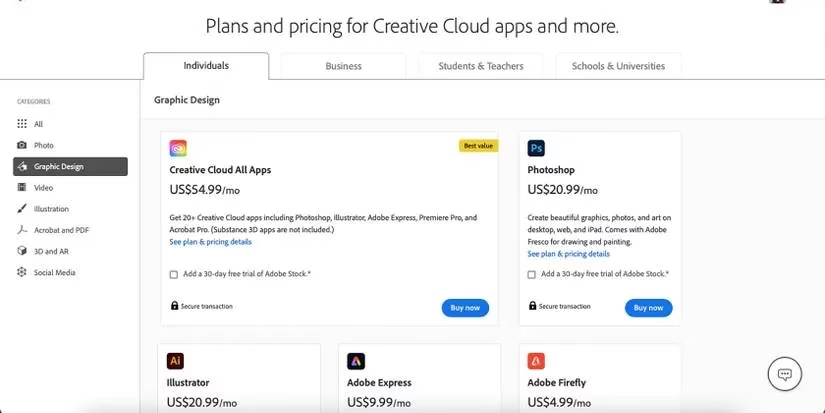
Photoshop lives inside Adobe Creative Cloud, which is more like a streaming service for creative professionals. The individual Photoshop plan has hovered around $20.99 a month, while the All Apps plan can set you back about $54.99 a month. That’s less “coffee money” and more “mortgage payment for your creative habit.” But if you’re a professional retoucher or photographer, the extra accuracy might be worth eating ramen for a week.
Quality Time with the AI
Here’s the meat and potatoes: does the expanded edge actually look any good?
Canva’s Magic Expand doesn’t offer a text prompt box. It relies entirely on the existing image to guess what should live beyond the frame. That’s great for plain backgrounds, repeated scenery, or a big stretch of sky. If your photo is mostly sky and sand, Magic Expand shines. If you want it to guess that your subject’s arm should continue into a leather jacket holding a taco, forget it—it won’t read your mind. It’s like asking a mime to describe a sunset. Nice vibe, zero specifics. You do get four initial results and can regenerate more, so at least there’s variety.
Photoshop’s Generative Expand, though, rolls up its sleeves. It also has an optional text prompt box. You can let Firefly work its magic with no instructions, or you can type something like “extend the brick wall with a red door.” With a clear prompt, the results are much more accurate. It won’t always match your original style perfectly, but for detail work it’s the better candidate. Photoshop hands you three initial images, and you can keep generating if the first batch misses the mark.
Where Each Tool Earns Its Keep
Both tools have very specific superpowers, so the winner depends on your workflow.
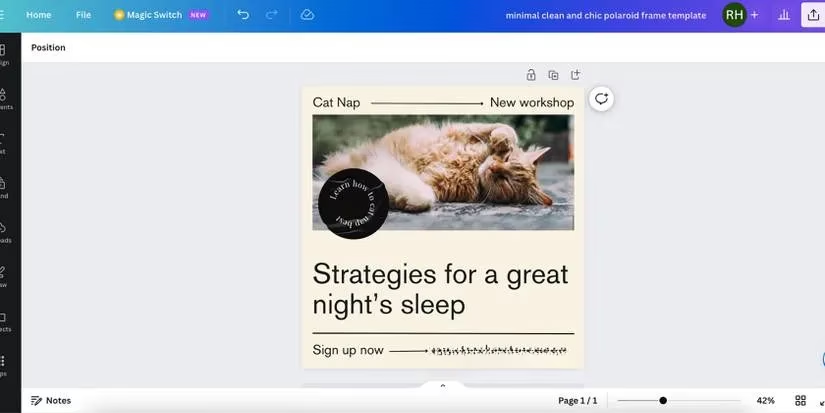
Canva Magic Expand only expands an isolated image within a design. It won’t resize your whole layout, and it can’t be used on images sitting inside placeholders. But that’s actually useful when you just need to balance a hero image inside a social graphic. You can stretch the image to fit the page, though it won’t go beyond your current artboard. Think of it as a Swiss Army knife for social media and marketing graphics.
Photoshop’s Generative Expand, on the other hand, only works on the main background image—not on separate layers or embedded objects. Once you’ve expanded the photo, you’ll often export it and pop it into layout software like InDesign or Adobe Express. It’s a scalpel, not a layout cage.
| Scenario | Canva Magic Expand | Photoshop Generative Expand |
|---|---|---|
| Quick social graphics | 😍 Perfect | 😐 Overkill |
| Complex photo retouching | 😅 Guessy | 🤖 More accurate |
| Text prompt control | ❌ None | ✅ Yes |
| Cost for solo users | 💸 Lower | 💸 Higher |
| Learning curve | 😌 Friendly | 🙃 Adobe-flavored |
Final Call
At the end of the day, Canva Magic Expand is the budget-friendly, breezy option for creators who need a fast extension without fuss. Photoshop Generative Expand is the heavyweight for anyone who wants more control, more detail, and doesn’t mind paying for it. If you’re a Canva junkie cranking out Pinterest pins and Instagram posts, Magic Expand will do the job just fine. If you’re retouching a hero image for a big campaign, Photoshop’s prompt-driven power is worth the extra cash and clicks.
For me, the real winner is whichever one doesn’t turn my poor cat into a haunted oil painting. Your mileage may vary.
Comments