 AIImageInsight

Nora came home from a weekend trip with a camera roll full of almost-great photos. The sunset over the harbor was too dark, the street portrait was softer than she remembered, and a museum shot was ruined by a stubborn reflection on glass. She had taken the pictures on her Samsung phone, and she knew the usual solution: open a complex editor, nudge sliders, and hope for the best. But what if the fix was already sitting in her app drawer? That question led her to Galaxy Enhance-X, Samsung’s AI-powered image enhancer, and to a much simpler editing session than she expected.
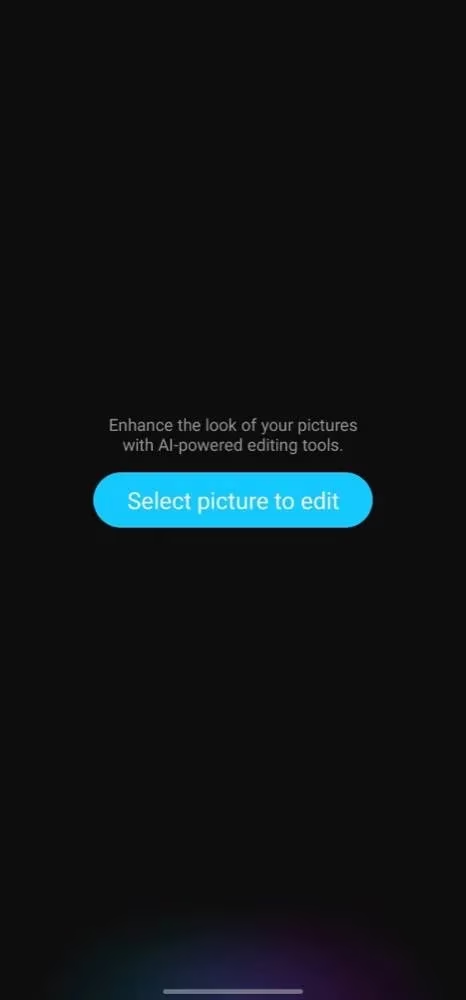
Galaxy Enhance-X is not a typical photo editor. It is built around a one-tap remaster feature called Magic, which analyzes an image for problems such as noise, blur, and weak sharpness, then tries to repair them automatically with AI. For Nora, that was the first surprise. She had assumed AI editing meant handing over control and accepting whatever the machine produced. Instead, the app gave her a quick automatic result and then invited her to refine it herself. Isn’t that the balance most phone photographers actually want?

In 2026, Galaxy Enhance-X is no longer the limited beta it once was. It began as an experimental tool for Samsung’s Galaxy S23 series, but Samsung has since widened its reach across many compatible Galaxy phones. The app remains available through Samsung’s own app store, and it still works with more than just photos taken on a Galaxy device. Nora could use it on pictures from older phones, saved screenshots, and images she had downloaded online. That flexibility mattered because her camera roll was a mix of old and new.
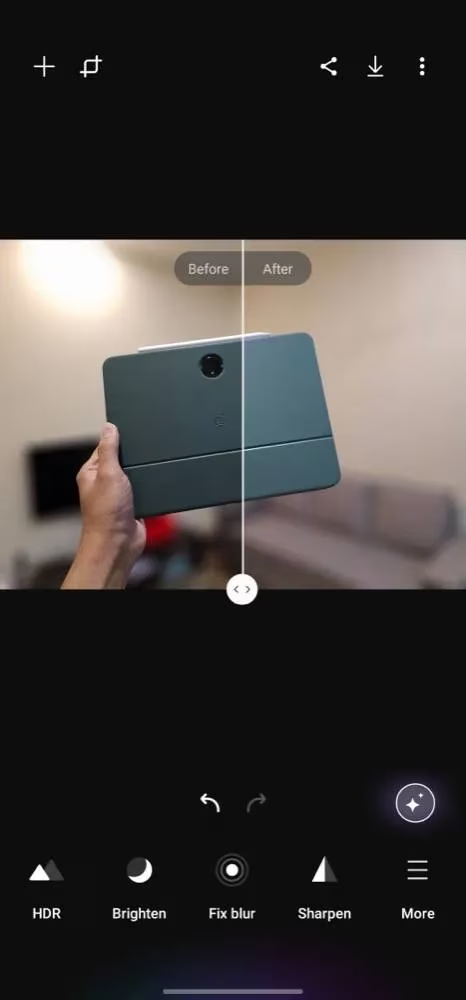
The heart of the experience is still the Magic button, marked with a star icon. Nora selected a dim harbor photo, tapped Magic, and watched the app work. A slider appeared across the middle of the image, letting her drag left and right to compare the before and after. The difference was not magical in a fantasy sense, but it was practical: the shadows opened up, the colors looked more balanced, and the image felt closer to what she had seen that evening.
Then came the part that made the app more than a novelty. Galaxy Enhance-X offers eleven separate tools, each with a dedicated button. Nora did not need to understand AI models or editing theory. She only needed to recognize what was wrong with a photo and choose the matching fix.
| Tool | What it does |
|---|---|
| HDR | Analyzes highlights, shadows, brightness, and contrast to improve the overall scene. |
| Brighten | Raises or lowers brightness when an image is too dark or too bright. |
| Fix blur | Attempts to make a blurry image clearer, though results can vary. |
| Sharpen | Adds definition to an image that looks too soft. |
| Fix moiré | Removes odd line or dot patterns that sometimes appear in old or downloaded images. |
| Remove reflection | Tries to eliminate reflections, such as those on glass. |
| Remove shadows | Reduces shadows cast by objects in the scene. |
| Fix lens distortion | Corrects optical warping and aberrations. |
| Portrait | Adds portrait effects such as blur, studio, or low-key mono. |
| Face | Adjusts facial smoothness, tone, jawline, and eyes. |
| Upscale | Increases resolution, with support for up to four times upscaling. |
Nora tested several of them. The Brighten tool rescued the sunset photo, while HDR gave it a more natural range between the bright sky and the darker water. The Portrait tool offered a few looks, and she chose a soft blur effect that separated her friend from the background without making the scene look artificial. For the museum image, Remove reflection was less reliable. It worked on one photo and failed on another, which reminded her that AI editing is helpful, not flawless.
What about photos that were already close to good? Nora found that the app was especially useful there. A portrait did not need a dramatic remaster; it needed a small nudge. She opened the Face tool, adjusted smoothness and tone, and then used the Upscale option on an old low-resolution family picture. Galaxy Enhance-X saved the result back to her gallery at her chosen output resolution. The workflow was short enough that she could edit a handful of photos while waiting for coffee.
Is Galaxy Enhance-X perfect? No. Some tools are inconsistent, and Fix blur can struggle with badly blurred images. Remove reflection does not always identify the problem correctly. The app is best treated as a fast first pass, not as a replacement for careful manual editing when a photo really matters. Yet for everyday camera roll rescue missions, that first pass can save time and frustration.
By the end of the evening, Nora had rescued six photos and learned a simple lesson: the best editing app is often the one that removes friction. Galaxy Enhance-X did not ask her to become an expert. It asked her to tap a star, compare the result, and make a few small choices. For a traveler with a phone full of memories and no patience for complicated software, that was more than enough. 📸✨
Comments