 AIImageInsight
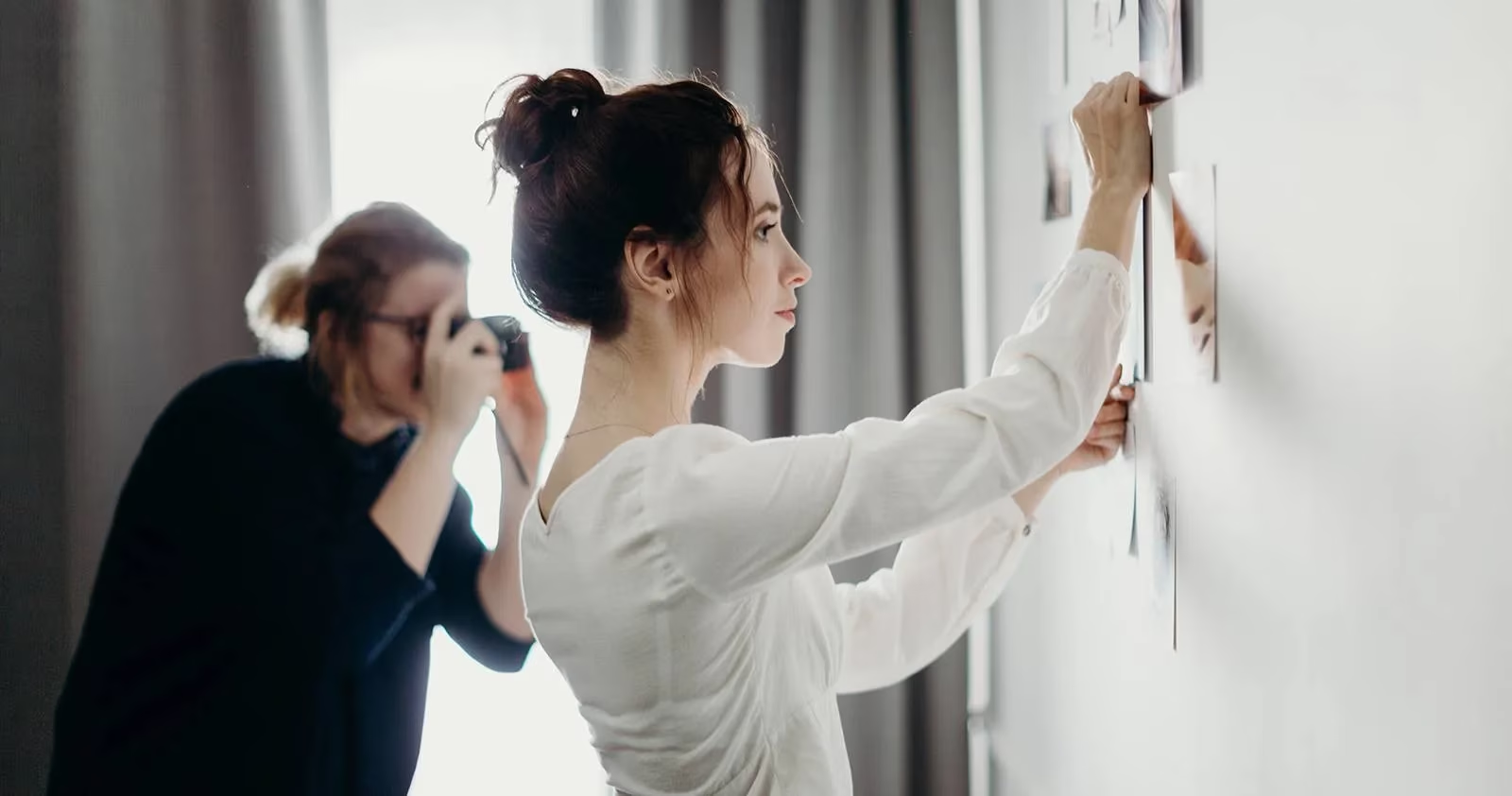
In 2026, the problem of building a texture library no longer belongs to the patient and the wealthy. A photographer named Maya once spent entire weekends hunting for empty walls, weathered wood, and crumpled paper. She carried a camera, a notebook, and a growing sense of exhaustion. Why spend days collecting surfaces one by one when a single photograph could become a whole collection? That question changed her workflow forever.
Maya had heard about Midjourney, but she thought of it mainly as a tool for fantasy landscapes and surreal portraits. Then she discovered a simple four-step workflow that turned one source image into dozens of usable textures. The workflow was not about replacing her eye. It was about multiplying her options.
The Four-Step Workflow That Changed Her Library
The method was elegant: describe, upscale, vary, and modify. Each step fed the next. In 2026, with AI image generators woven into everyday creative tools, this kind of loop feels natural. But for Maya, it was a revelation.
Step 1: Use Describe to Turn a Photo Into Prompts
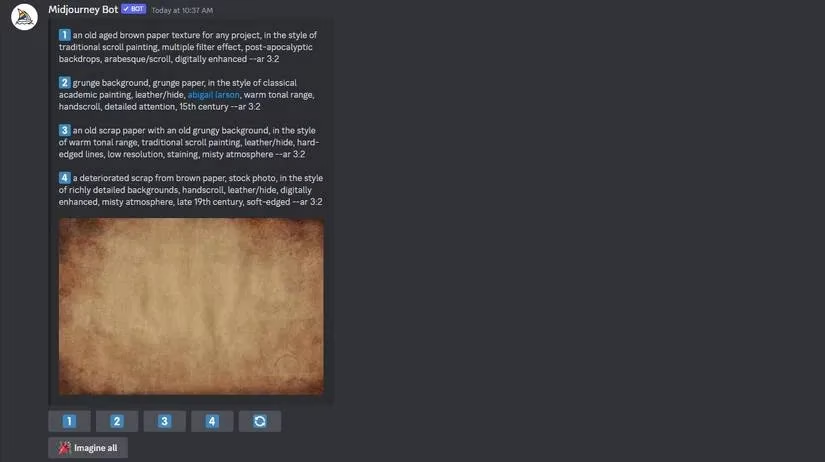
Maya started with a plain brown paper texture. It was nothing special, just an empty canvas she had photographed years ago. She typed /describe in Midjourney and uploaded the image. The command analyzed the photo and returned four text prompts. Each prompt described the texture in a different way. Each prompt then generated four variations. That meant sixteen basic images from a single source. Sixteen! And she had not even edited a thing yet.
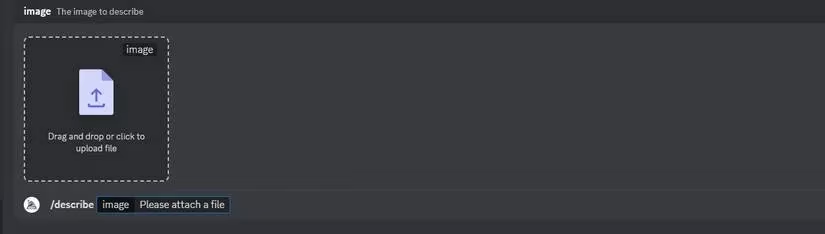
She pressed enter twice and watched the prompts appear. The results were subtle at first, like siblings who shared a family resemblance. Some variations were warmer. Some had slightly different grain. Some felt softer or more distressed. Maya could already see how these images could become backgrounds for composites, mockups, and digital paintings.
Step 2: Upscale and Create Variations
Next, Maya magnified one set of variations. She clicked U1 to upscale the first image. Midjourney enlarged it to a higher resolution and offered a new menu of options. This was where the real texture library began to grow.
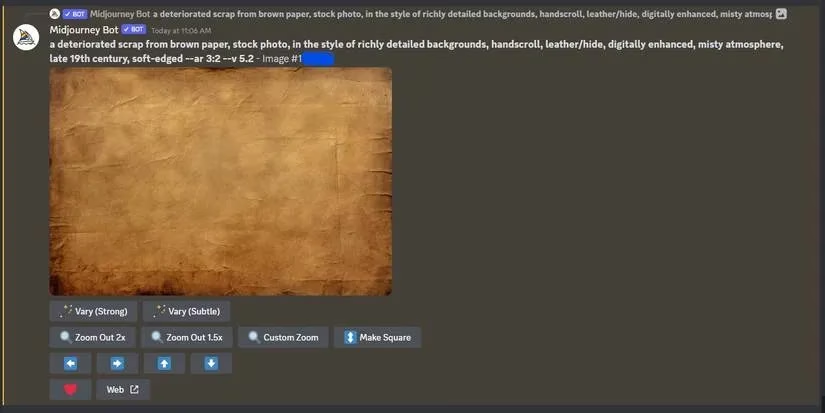
The options included Vary (Strong), Vary (Subtle), Zoom Out 2x, Zoom Out 1.5x, Custom Zoom, Make Square, and four pan arrows. Maya explored each one like a traveler opening doors in a strange house. Vary (Strong) pushed the texture into new territory. Vary (Subtle) kept the original feeling but shifted the details. Zoom Out revealed more of the surrounding pattern. Make Square reshaped the composition. The pan arrows moved the frame left, right, up, and down, uncovering edges that had not existed before.
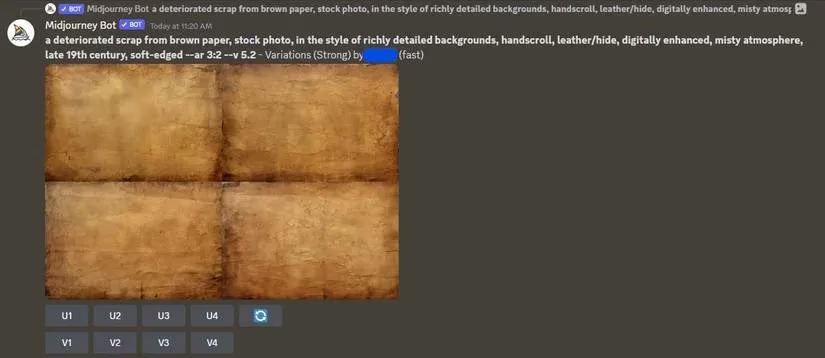
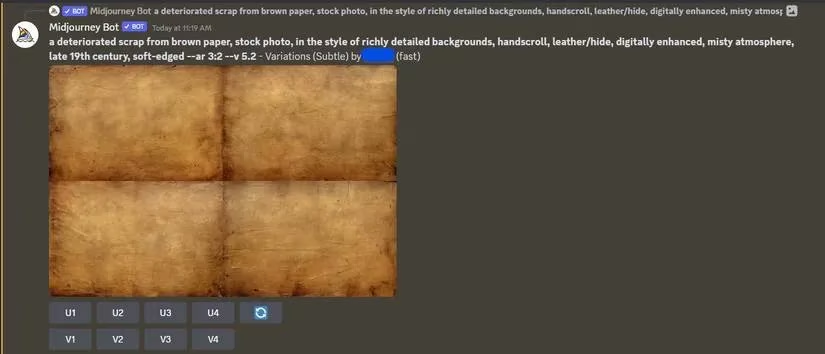
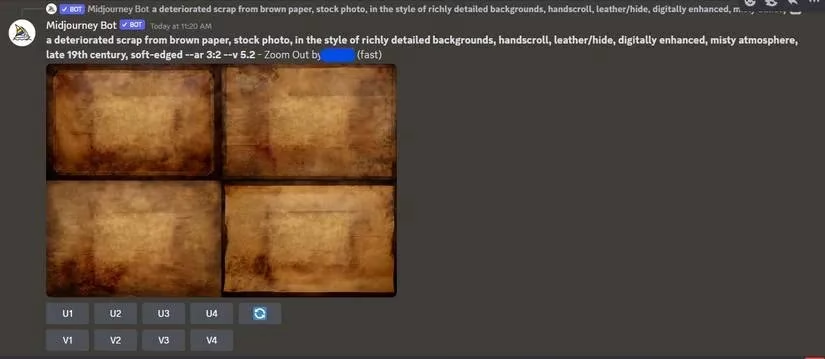
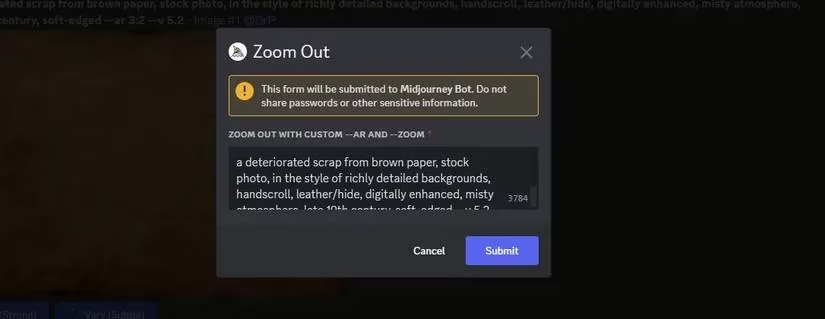
Not every option suited every image, but that was fine. Maya only needed a few gems from each batch. She saved the ones that felt useful and discarded the rest. The library grew not by force, but by selection.
Step 3: Modify Prompts for New Colors and Moods
The workflow did not stop at Midjourney's built-in variations. Maya could also copy any prompt and rewrite it. She highlighted a text prompt, pressed Ctrl + C, typed /imagine, and pasted it with Ctrl + V. Then she edited the words.
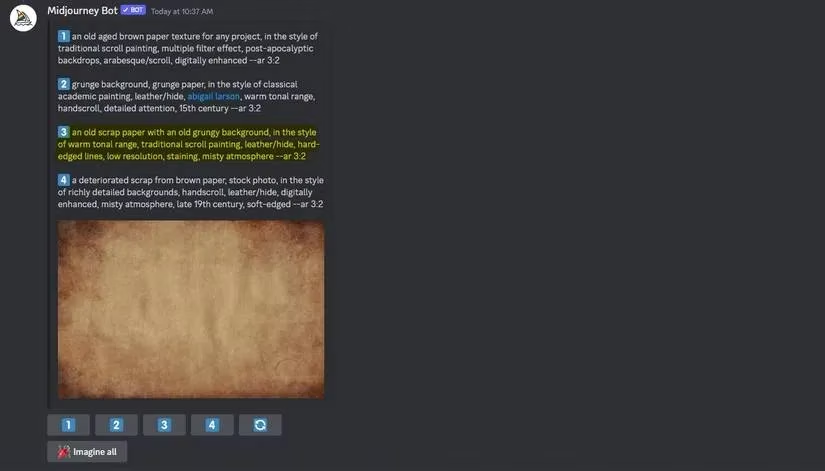
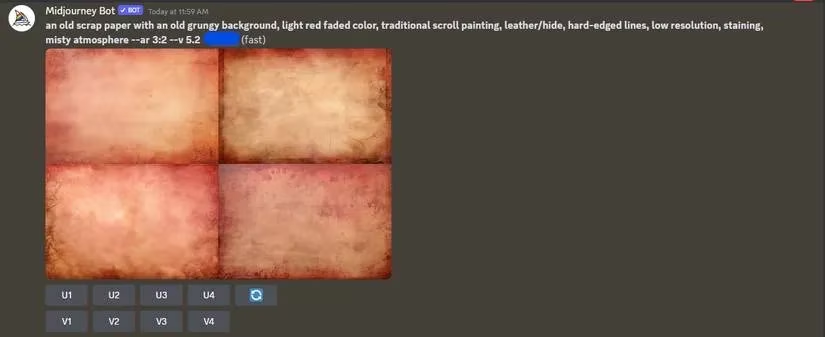
For example, she deleted the phrase 'in the style of warm tonal range' and replaced it with 'light red faded color'. After pressing Enter, Midjourney produced a fresh set of images with a rosy, washed-out mood. Just like that, a brown paper texture became a faded red one. She could have changed lighting, grain, contrast, or material. She could have asked for stone, fabric, rust, or watercolor. The only limit was her imagination.
Why This Workflow Still Matters in 2026
In 2026, creative tools are faster and more connected than ever. But the core lesson remains: one good source image can become a hundred useful assets. For photographers, designers, and digital artists, that means less time hunting and more time making. It means a single afternoon can produce a library that once took months to assemble.
Maya now keeps a folder of source textures and a folder of Midjourney variations. When a project needs a background, she does not panic. She opens the folder, picks a direction, and generates a few more options. The process feels less like a chore and more like a conversation with her own archive.
What if the perfect texture is already sitting in your photo library, waiting to be described? What if the only thing standing between one image and an entire collection is a simple command? In 2026, the answer is clear. Midjourney makes it possible to turn one photograph into a myriad of versions. Start with a single image, and watch your library grow.
Comments