 AIImageInsight
Everyone's obsessed with the new AI tools in Photoshop these days, and don't get me wrong, they're amazing for certain creative tasks. But let me let you in on a secret that's been my productivity lifesaver for years and continues to be in 2026: Photoshop Actions. 🤫✨ While AI is getting all the headlines, this classic feature has been quietly automating my workflow since, well, forever. It's the unsung hero of speed editing, and I use it daily to breeze through repetitive tasks that would otherwise eat up my precious creative time.
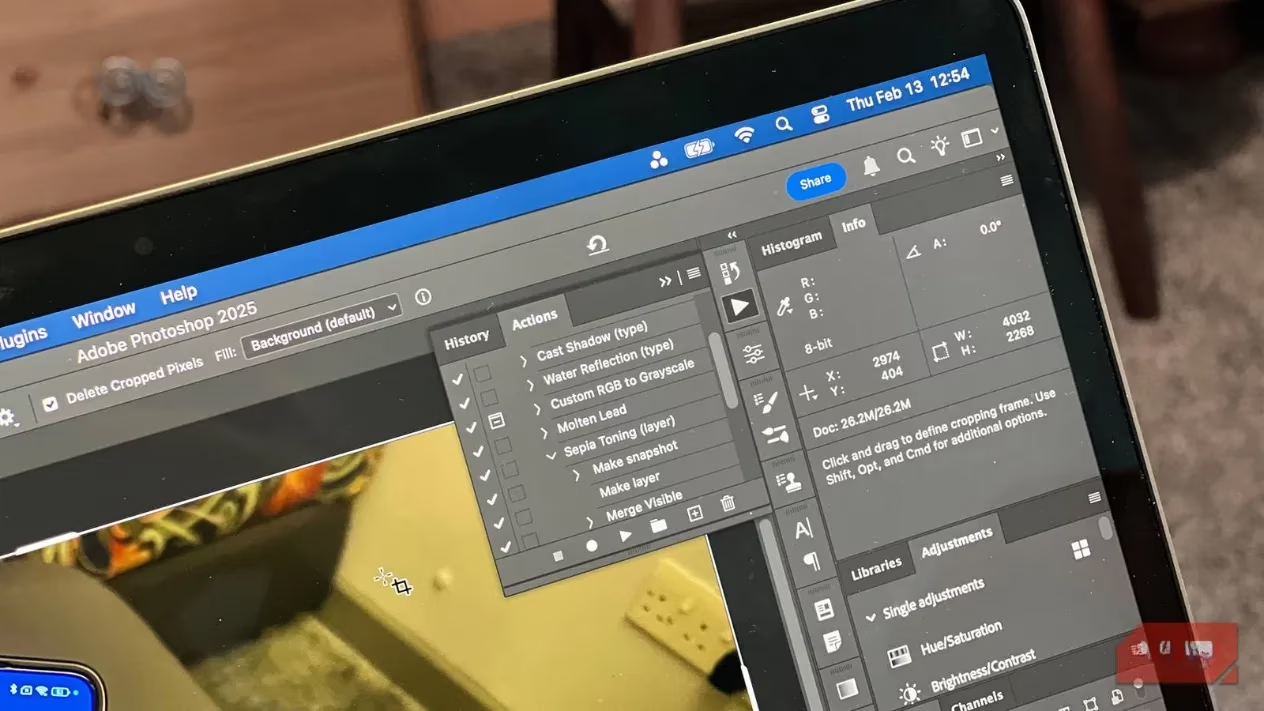
So, what exactly are Photoshop Actions? Think of them as your personal editing assistant that you can train once and have work for you forever. 🎬 They're essentially saved recordings of any editing process you do in Photoshop. You record your steps once—cropping, resizing, applying filters, adding watermarks, adjusting colors—and then you can "play" that recording on any other image with a single click. It's like creating a custom macro or a super-specific preset that works across your entire project library.
✨ Why I'm Still Obsessed with Actions in 2026
In a world of AI, why stick with this '90s-born feature? Simple: reliability and precision. AI is fantastic for generation and complex edits, but for the mundane, repetitive stuff I do every day, Actions are faster and give me consistent, predictable results every single time.
-
Bulk Editing Magic: Remember editing hundreds of photos for an event? I do. With Actions, I can apply the same crop, resize, and watermark to an entire folder of images while I grab a coffee. ☕️
-
Consistent Branding: Whether it's applying a specific color grade, adding my logo, or formatting social media graphics, Actions ensure my visual identity is perfectly uniform.
-
Time is Money: Saving just one minute per task might not seem like much, but multiply that by 50 images a day, and you've just reclaimed nearly an hour of your life. ⏳💸
🧭 Finding & Using the Actions Panel
Ready to dive in? The Actions panel is your command center. You can find it by going to Window > Actions. It usually docks on the right side of your workspace, marked by that familiar triangular "Play" button icon.
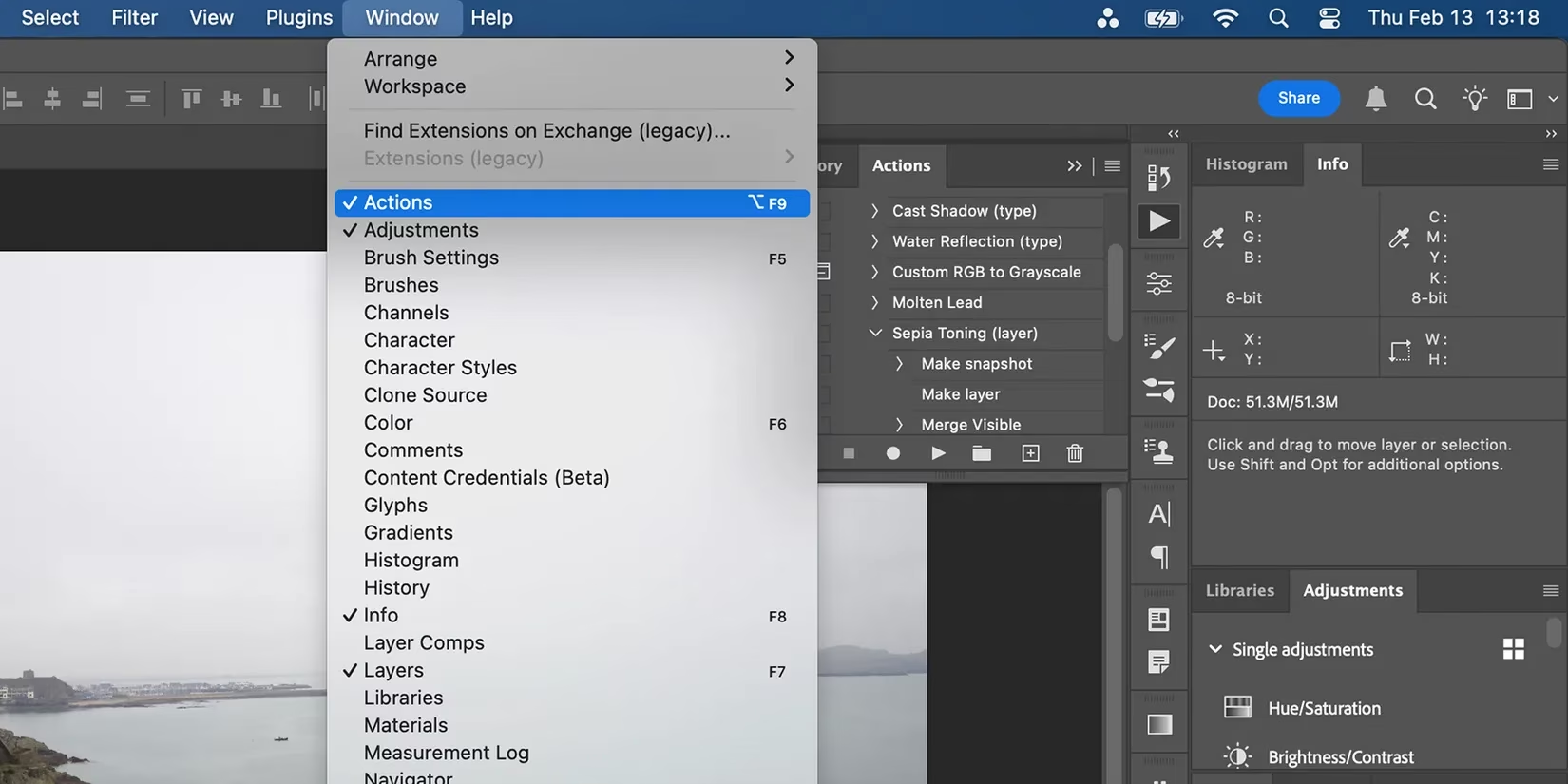
When you open it, you'll see some default Actions Adobe provides, like "Vignette" or "Gradient Map." These are great to play with and understand the concept, but the real power comes from creating your own.
🛠️ How to Create Your First Action (Step-by-Step)
Creating an Action is easier than you think! Here’s my simple workflow:
-
Plan Your Steps: Know what you want to automate. For me, it's often: Crop to 4:5 ratio > Resize to 1080px width > Sharpen > Save for Web.
-
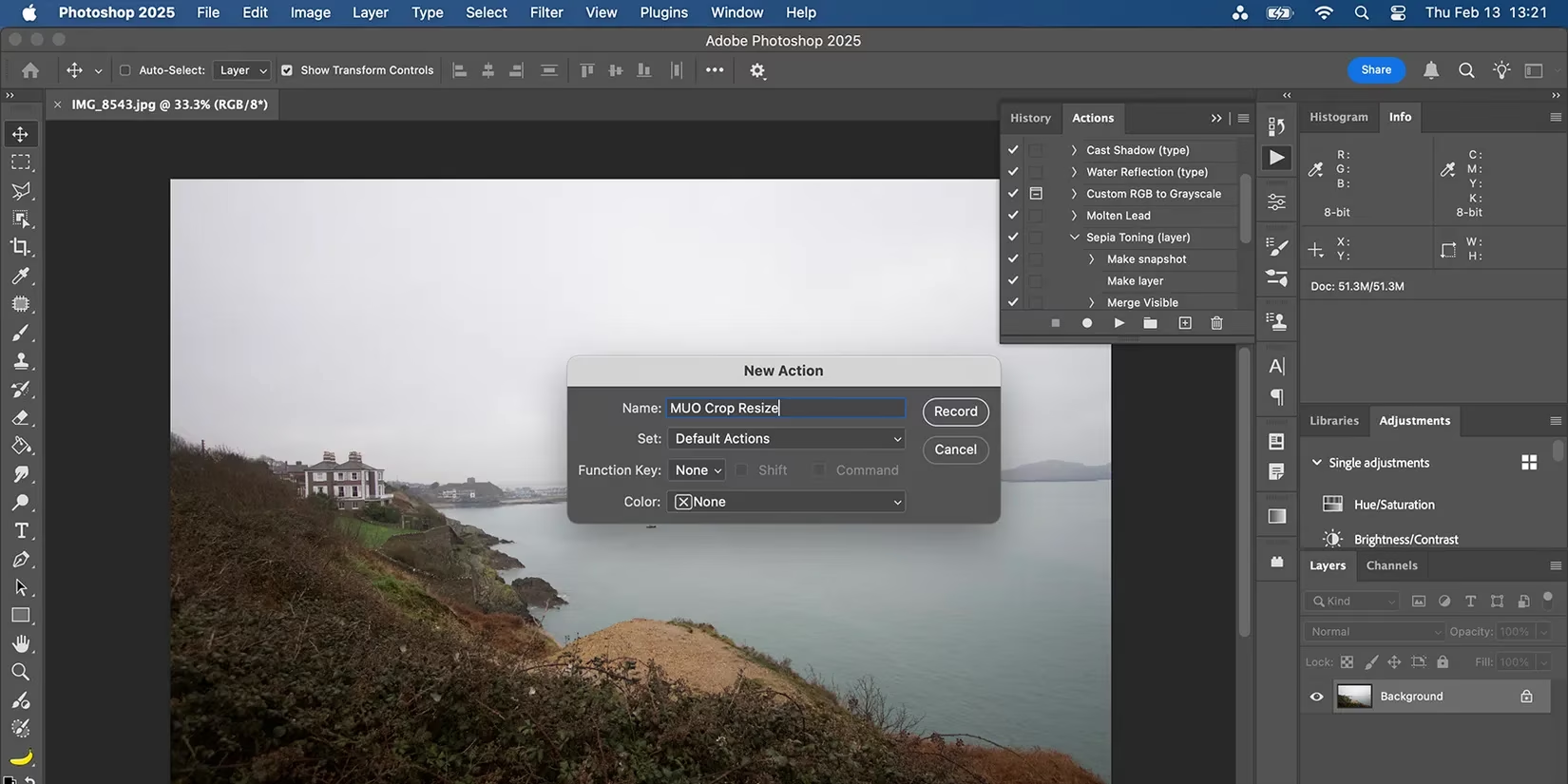
Hit Record: In the Actions panel, click the "Create New Action" icon (looks like a little sticky note). Give it a clear name, like "Instagram Portrait Prep," and click Record.
-
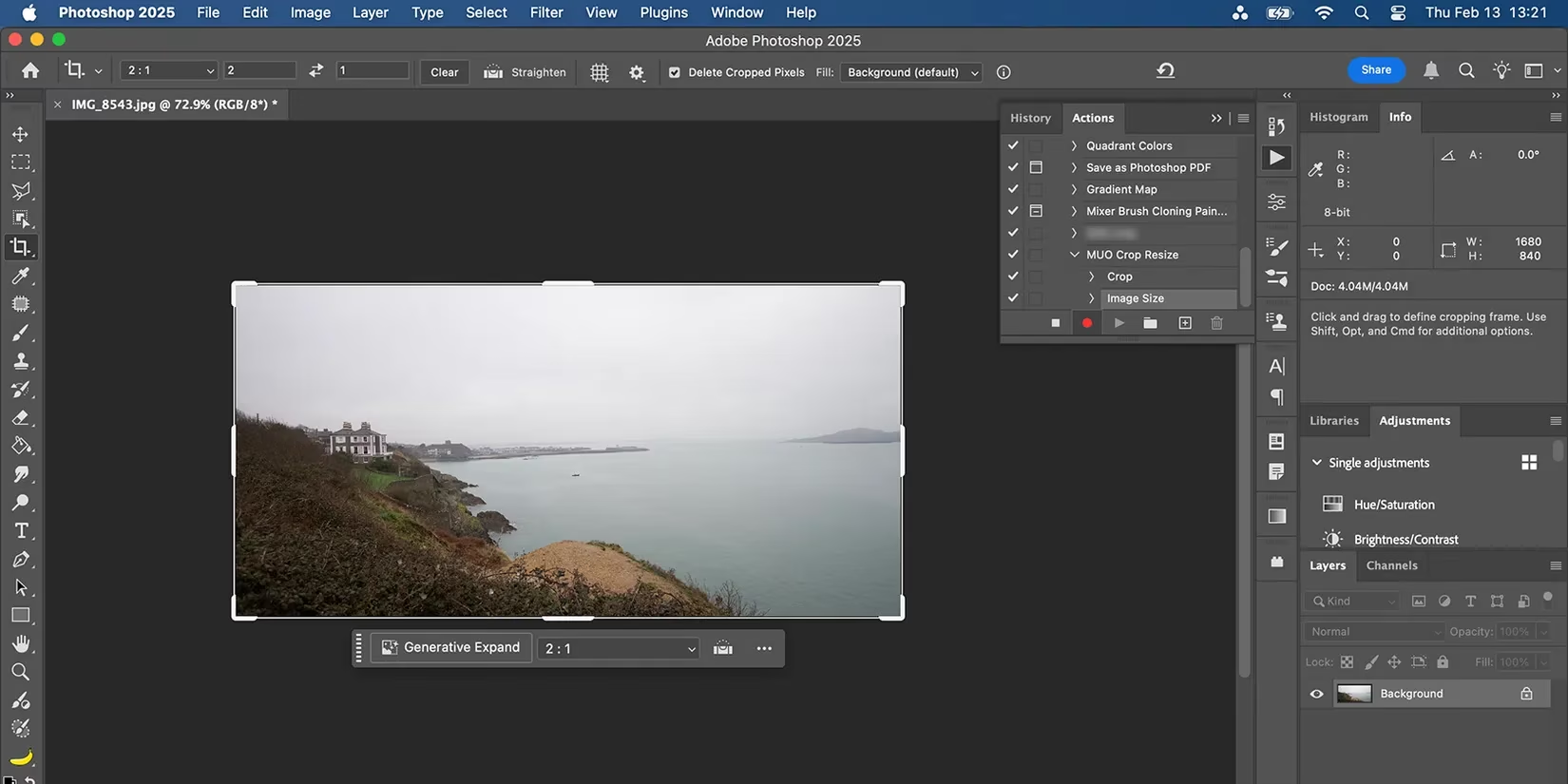
Perform Your Edits: Now, just go through your editing process normally on your open image. Every click, slider move, and menu selection is being recorded. 🎤
-
Stop & Save: When you're finished, click the square "Stop" button in the Actions panel. Voilà! Your Action is now saved and ready to use.
🚀 Pro Tips for Action Mastery
-
Use Sets to Organize: Create folders (called "Sets") in your Actions panel for different purposes—"Social Media," "Client Retouching," "Personal Projects." It keeps everything tidy!
-
Insert Stops for Flexibility: You can add interactive stops to your Actions. This lets the Action pause and ask for your input (like typing text for a watermark) before continuing. Perfect for tasks that need a slight variation.
-
Batch Process with Actions: This is the ultimate time-saver. Go to
File > Automate > Batch. Select your Action and a source folder of images. Photoshop will then open each image, run the Action, and save them—completely hands-off! 🤯 -
Don't Reinvent the Wheel: While making your own is best for custom workflows, there are tons of beautiful, pre-made Action packs out there for complex effects (cinematic looks, vintage tones, advanced retouching). They can be a huge inspiration!
🤖 Actions vs. AI: My 2026 Perspective
Let's be real: You don't have to choose. I use both, every day. Here's how I see it:
| Feature | Best For | My Go-To Use Case |
|---|---|---|
| 🤖 Photoshop AI (Generative Fill, etc.) | Creative exploration, removing objects, expanding images, generating new content. | When I need to creatively problem-solve or add something that wasn't in the original shot. |
| ⚡ Photoshop Actions | Repetitive tasks, consistent formatting, bulk processing, applying precise edits. | Preparing 50 product images for my online shop with identical sizing and watermark. |
Think of AI as your creative brainstorming partner and Actions as your ultra-efficient production assistant. They work together seamlessly.
💭 Final Thoughts
In 2026, with tech evolving at lightning speed, it's easy to overlook the simple, powerful tools that have stood the test of time. Photoshop Actions might not have the "wow" factor of AI generation, but their practical, time-saving power is undeniable. They've saved me countless hours over the years, hours I've been able to spend on actual creative work instead of mindless button-clicking.
If you haven't explored Actions yet, I highly encourage you to open that panel and try recording one simple task this week. Start with something easy, like resizing and saving. Once you see that magic "Play" button work its charm, you'll be hooked. It's the closest thing to a superpower for any digital creator. 💥
Comments