 AIImageInsight
Every Midjourney user knows the feeling—typing a vivid prompt, hitting Enter, and waiting eagerly for the result. But when it arrives, the beautiful landscape or dramatic portrait feels oddly squished into a perfectly square box. Why does that happen? By default, Midjourney renders all images at a 1:1 aspect ratio. It’s safe, symmetrical, and predictable. Yet sometimes, a square just won’t do. Would you frame a movie poster as a square? Or set your phone wallpaper to a 1:1 image that leaves awkward black bars on the sides? That’s where the --aspect (or --ar) parameter steps in—and once you master it, the possibilities stretch far beyond the cramped default canvas.
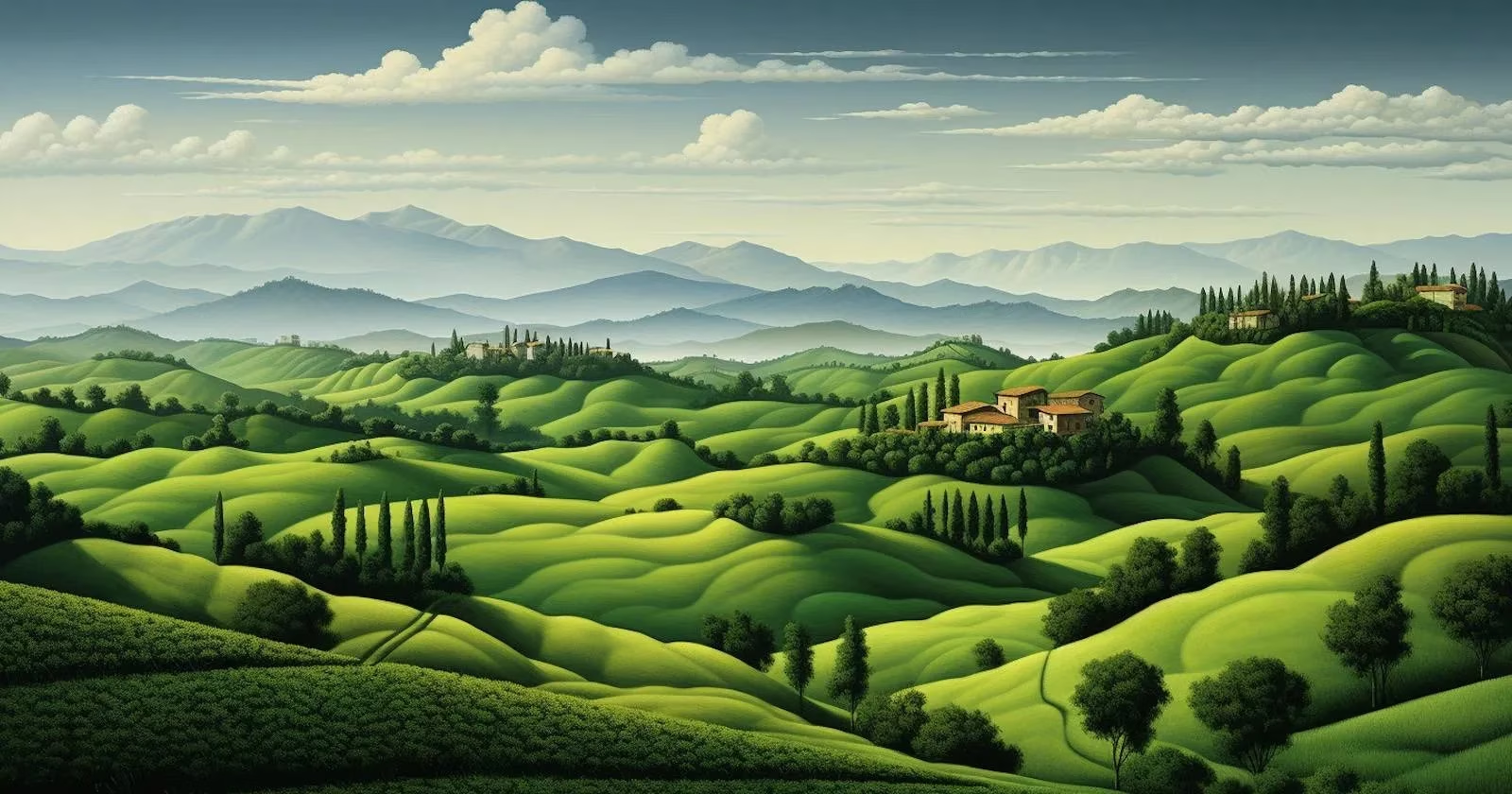
The syntax is simple: append --aspect 2:3 or --ar 2:3 to the very end of your prompt. Midjourney reads this ratio and reshapes the output accordingly. But numbers like 2:3, 4:5, or 191:100 can feel abstract. What do they actually mean for your final image? And which one fits your project—be it a social media post, a device wallpaper, or a printed poster? Let’s break it down in a chatty, practical way, using real examples and a handful of go-to numbers that every Midjourney enthusiast should bookmark.
Portrait Perfection: When a Face Needs a Tall Canvas
Portraits almost never shine in a square. Imagine a close‑up of a weathered old man in an orange beanie—would you rather see his face floating in a central square, or framed naturally with just enough shoulder and background to give context? Add --ar 2:3 to your prompt and the image adopts a classic portrait orientation. That’s the same ratio many photographers have used for decades. For a slightly broader vertical composition, try --ar 4:5. This works wonders for LinkedIn profile pictures or elegant Instagram posts where you want the subject to dominate the frame without feeling squeezed.
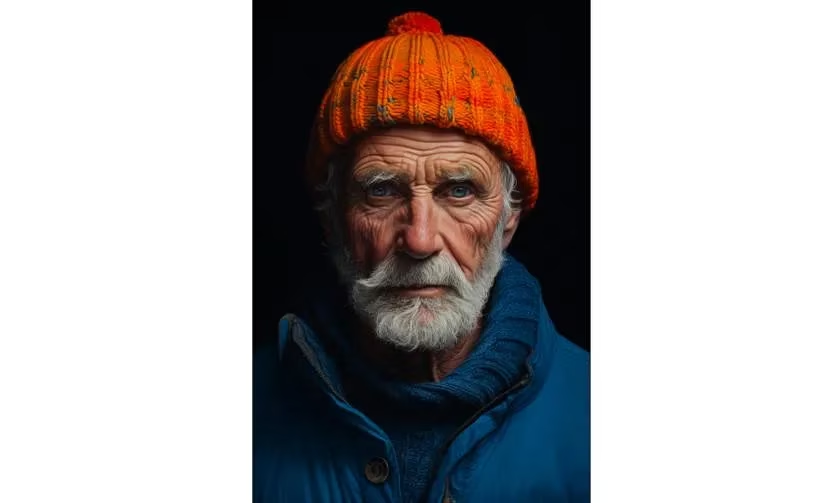
Here’s a little secret: even if the numbers mean nothing to your mathematical brain, you have definitely seen the 2:3 ratio in action. It’s the standard for many professional headshots. So next time you generate a face with Midjourney, ask yourself: shouldn’t you give that face the frame it deserves?
Landscapes That Actually Feel Vast
If a portait needs height, a landscape begs for width. Picture a bustling cyberpunk market in Hong Kong, neon signs stretching horizontally into the distance. A square crop would cut off that sense of sprawl. That’s where --ar 3:2 comes in—it’s a classic photography ratio that gives your scene room to breathe. Want an even wider cinematic effect? Try --ar 7:4. For a more restrained wide view, --ar 5:4 strikes a pleasant balance.
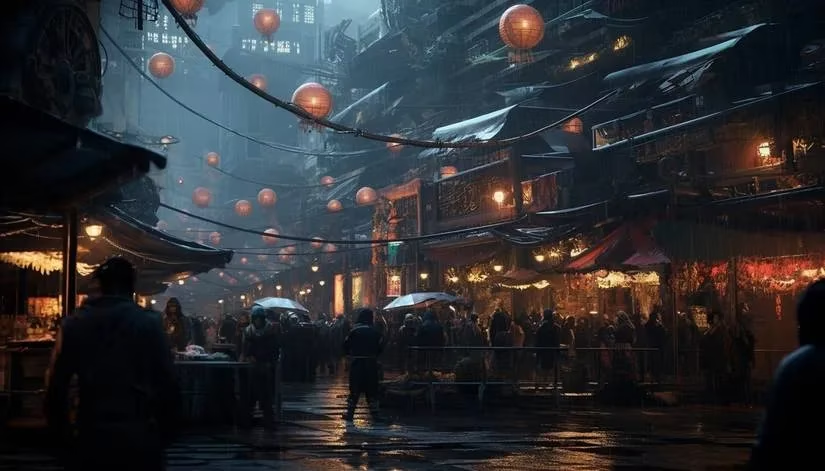
No matter if you’re conjuring green rolling hills or a futuristic skyline, the right landscape ratio lets the eye wander from edge to edge. The default 1:1 simply can’t replicate that open, immersive feeling.
From Screen to Wallpaper: Matching Your Device in 2026
Here’s a pain point we all know: finding a wallpaper that fits perfectly without zooming, cropping, or ending up with those dreaded black bars. Midjourney can generate custom wallpapers for any screen—if you know the correct ratio. In 2026, phone screens are taller than ever, and ultrawide monitors keep pushing horizontal boundaries. Rather than listing every model (which would be a full‑time job), the smart approach is to search for your specific device’s aspect ratio. But if you want a quick starting point, these numbers still hold strong:
-
iPhone 15 (and similar tall phones):
--ar 90:195 -
Galaxy S22 series:
--ar 90:195 -
Widescreen laptop / monitor:
--ar 16:10or--ar 16:9 -
Ultrawide monitor:
--ar 21:9
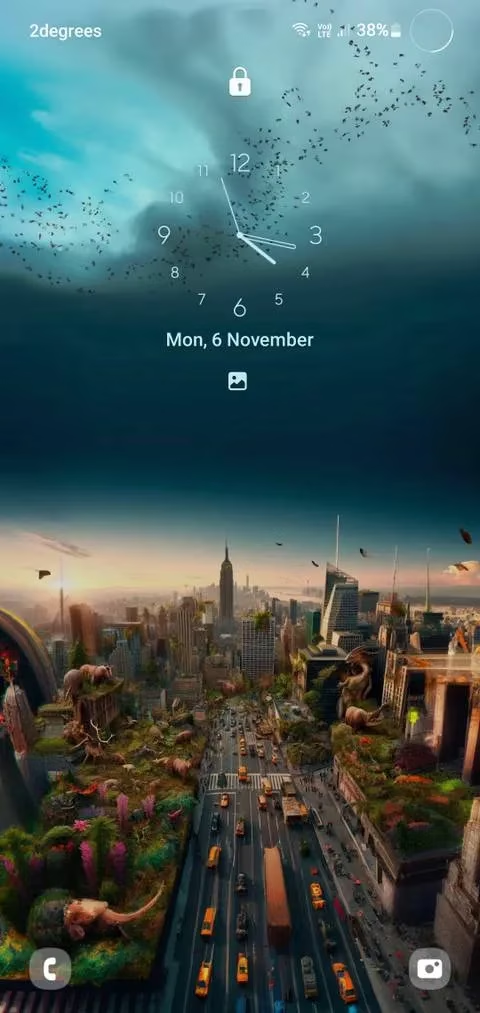
Just imagine: you could generate a serene space scene that stretches perfectly across your three‑monitor setup. That’s not science fiction; it’s simply using --ar 21:9 and hitting upscale. Which brings us to a crucial reminder—always upscale before setting an image as wallpaper or preparing it for print. A crisp, high‑resolution output starts with that upscale button.
Social Media Savvy: Stop Cropping Blindly
Ever uploaded an AI masterpiece to Instagram Stories only to find the top and bottom lopped off? Or made a LinkedIn banner that displayed pixelated and awkward? The fix is to bake the correct ratio into your prompt from the start. Below is a cheat sheet for the most popular platforms in 2026—still remarkably consistent with earlier years, because these sizes rarely change.
| Platform & Use | Aspect Ratio | Midjourney Parameter |
|---|---|---|
| Instagram Story | 9:16 | --ar 9:16 |
| Instagram Post (vertical) | 4:5 | --ar 4:5 |
| Instagram Post (landscape) | 191:100 | --ar 191:100 |
| LinkedIn Profile Banner | 4:1 | --ar 4:1 |
| LinkedIn Profile Image | 1:1 | (default) |
| Facebook Cover Photo | 16:9 | --ar 16:9 |
| Facebook Profile Picture | 1:1 | (default) |
| YouTube Channel Art | 16:9 | --ar 16:9 |
| YouTube Thumbnail | 16:9 | --ar 16:9 |
| YouTube Profile Image | 1:1 | (default) |
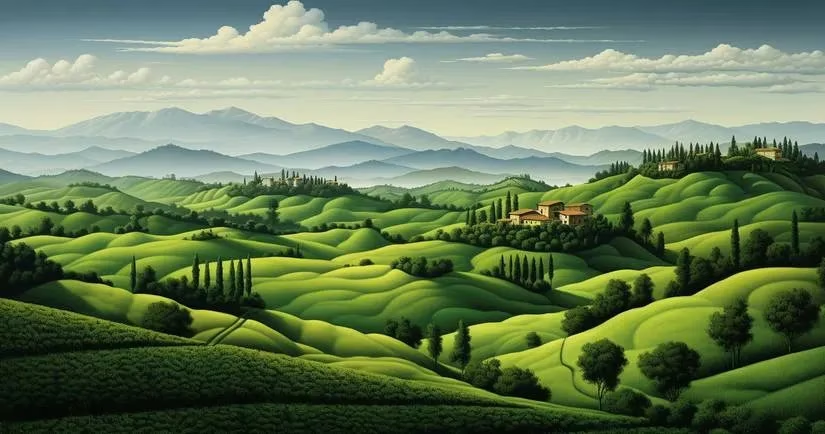
Isn’t it satisfying to preview your AI art knowing it will fit perfectly into your profile layout, without any guesswork? The --ar parameter hands you that control.
Printable Art: Make Your Walls a Gallery
AI art doesn’t have to stay trapped on a screen. Printing your Midjourney creations and hanging them on the wall turns digital pixels into tangible decor. But, of course, a random square won’t match standard frame sizes. Here are the ratios you’ll need for common poster dimensions intended for print:
| Print Type | Size (inches) | Aspect Ratio | Midjourney Parameter |
|---|---|---|---|
| Small Poster | 11" x 17" | 1:1.55 | --ar 1:1.55 |
| Medium Poster | 18" x 24" | 3:4 | --ar 3:4 |
| Concert Poster | 24" x 36" | 2:3 | --ar 2:3 |
| Movie Poster | 27" x 40" | 2:3 | --ar 2:3 |
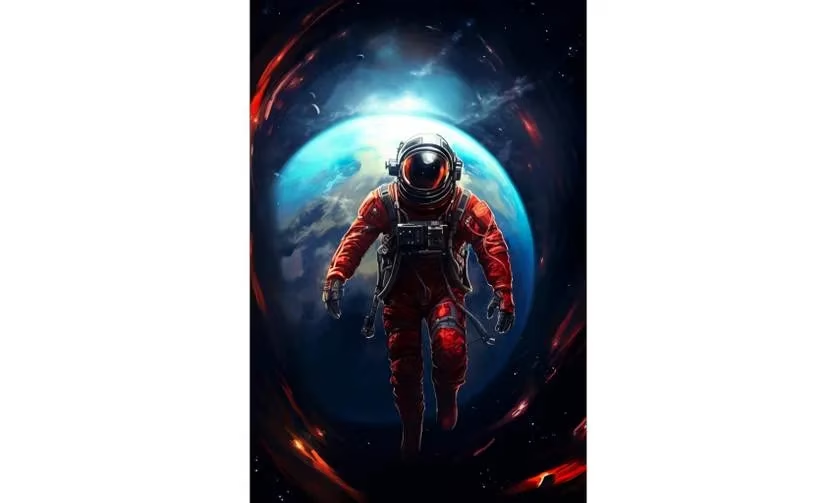
Notice how the popular 2:3 ratio reappears for rectangular posters? That’s no coincidence—it’s a versatile proportion that works beautifully for both portraits on-screen and classic prints. So, why not generate a series of themed artworks and fill your hallway with a cohesive gallery?
The Little Parameter That Unlocks Endless Possibilities
At its heart, the --aspect parameter is a tiny addition to your prompt with outsized impact. It frees you from the square, lets you design with intent, and ensures your AI‑generated images look stunning wherever they end up—on a feed, a lock screen, or a living room wall. The next time you sit down to craft a Midjourney prompt, ask yourself: What’s the stage where this image will shine? Then pick the ratio that matches the spotlight. Not only will your results look more professional, but you’ll also rediscover the joy of creating art that fits your life, pixel-perfect. Keep this guide handy, and soon those numbers will feel as natural as typing --v 6 or --stylize 750. Happy generating—and may your frames always be flawless.
Comments