 AIImageInsight
As AI-generated visuals continue to flood social media feeds, marketing campaigns, and personal projects, the gap between a generic output and a polished, professional image often comes down to the editing tools at one's disposal. Canva, already a household name among creators and small business owners, has spent the past few years quietly refining its built‑in AI editing suite. By 2026, those features have matured into a powerful post‑generation toolkit that lets anyone transform a rough AI draft into a bespoke visual story.
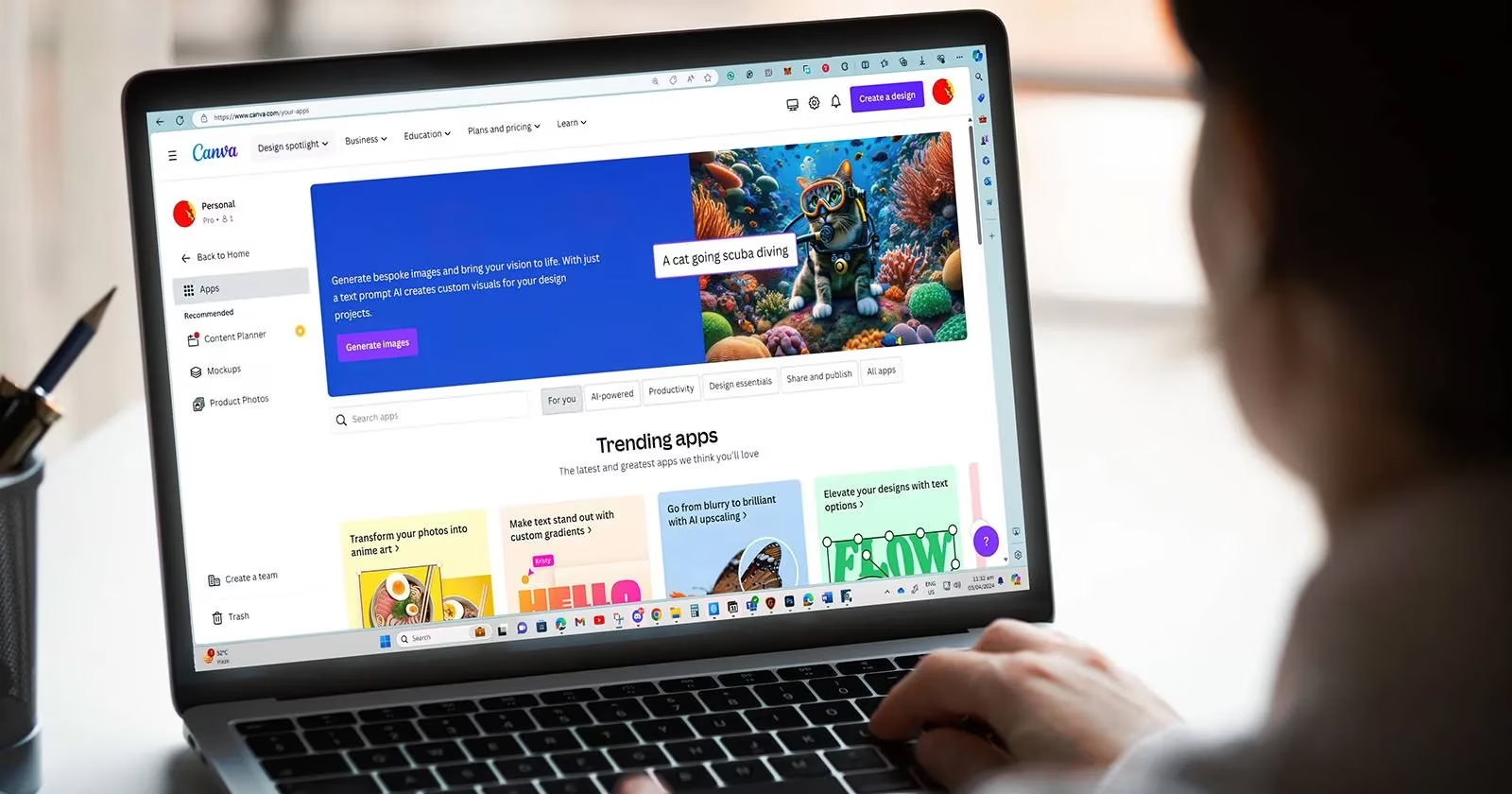
The starting point is usually Canva’s text‑to‑image generator, available under the Elements tab. Users type a descriptive prompt, pick one of more than twenty art styles—ranging from “anime” to “photorealistic”—and within seconds a set of images appears. Yet, as any regular user knows, the results rarely mirror the mental picture perfectly. Colors stray, compositions feel off, and any text that appears is typically an illegible jumble. However, rather than treating these as final outputs, savvy creators are now using three under‑the‑hood editing tricks to bend the AI’s output closer to their vision.
🎨 Fixing Colors in a Few Clicks
One of the most frequent frustrations is colour inconsistency. Even when a prompt includes specific hues, the generator often substitutes its own palette. Canva’s Color Edit tool, tucked inside the Adjust menu under Edit Photo, solves this with surprising simplicity. Once an image is placed on the artboard, selecting it and entering the Edit Photo panel reveals a palette of the four dominant colours detected in the scene.
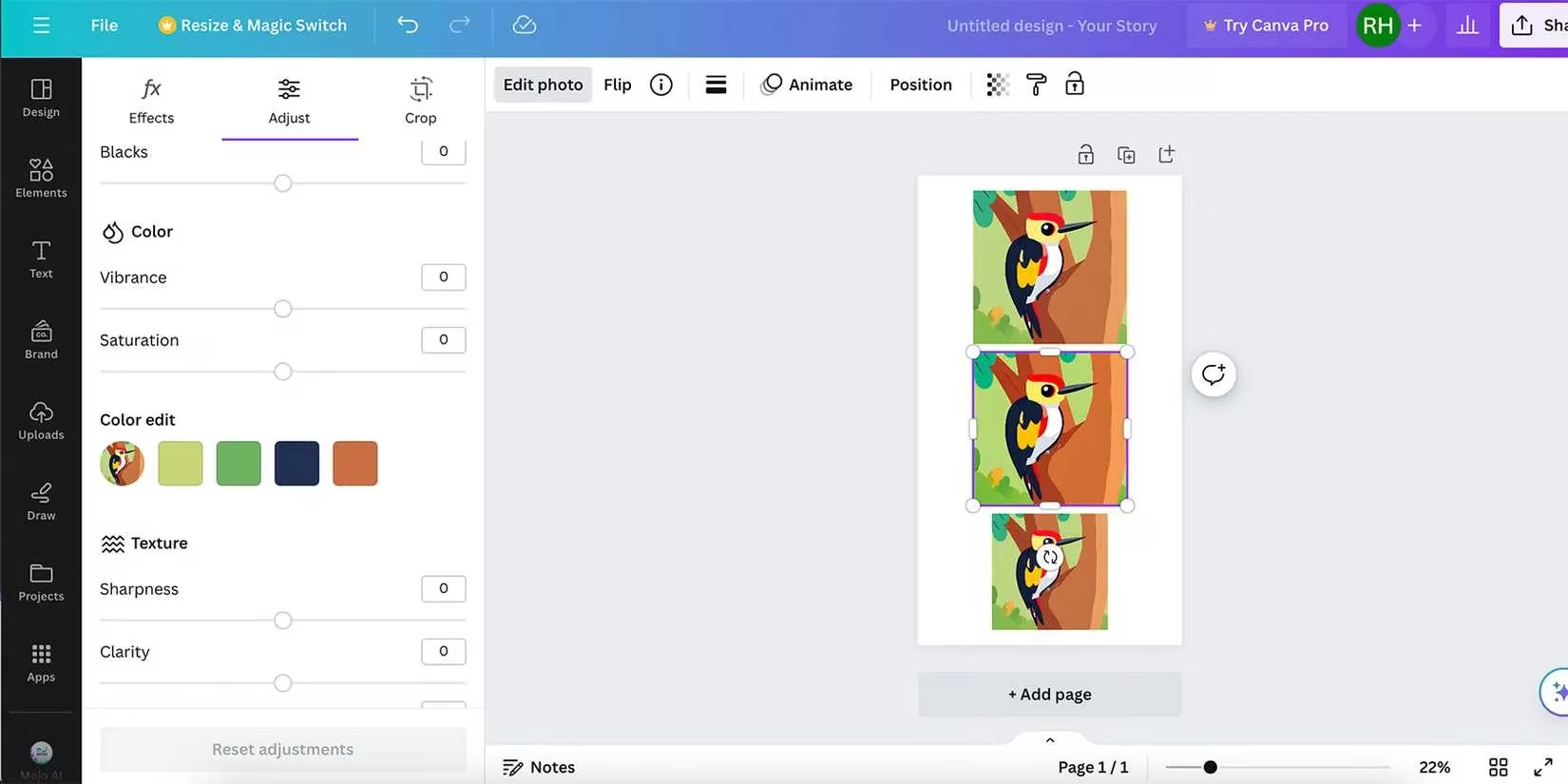
Each swatch can be individually modified using three sliders. The Hue slider lets users shift the entire colour range of that swatch—turning a dull yellow into a vibrant orange, for instance—without affecting unrelated areas. Saturation controls the intensity, allowing muted pastels or neon‑bright finishes. The Brightness slider adjusts luminance, lightening or darkening the chosen colour. Although the tool struggles a little with highly detailed gradients, it works brilliantly on flatter styles like concept art or playful, where colour blocks are more distinct. A few minutes of tweaking can rescue an image that would otherwise be discarded.
✂️ Recomposing Images with Magic Grab
Composition is another common pain point. Maybe the subject is off‑centre, or the background feels too cluttered. Instead of starting over, Canva Pro subscribers can lean on the Magic Grab feature. After generating a photorealistic image, users select Edit Photo and then tap Magic Grab. The tool automatically identifies the most prominent subject—ideal for portraits, products, or any scene with a clear focal point—and isolates it with a purple bounding box.
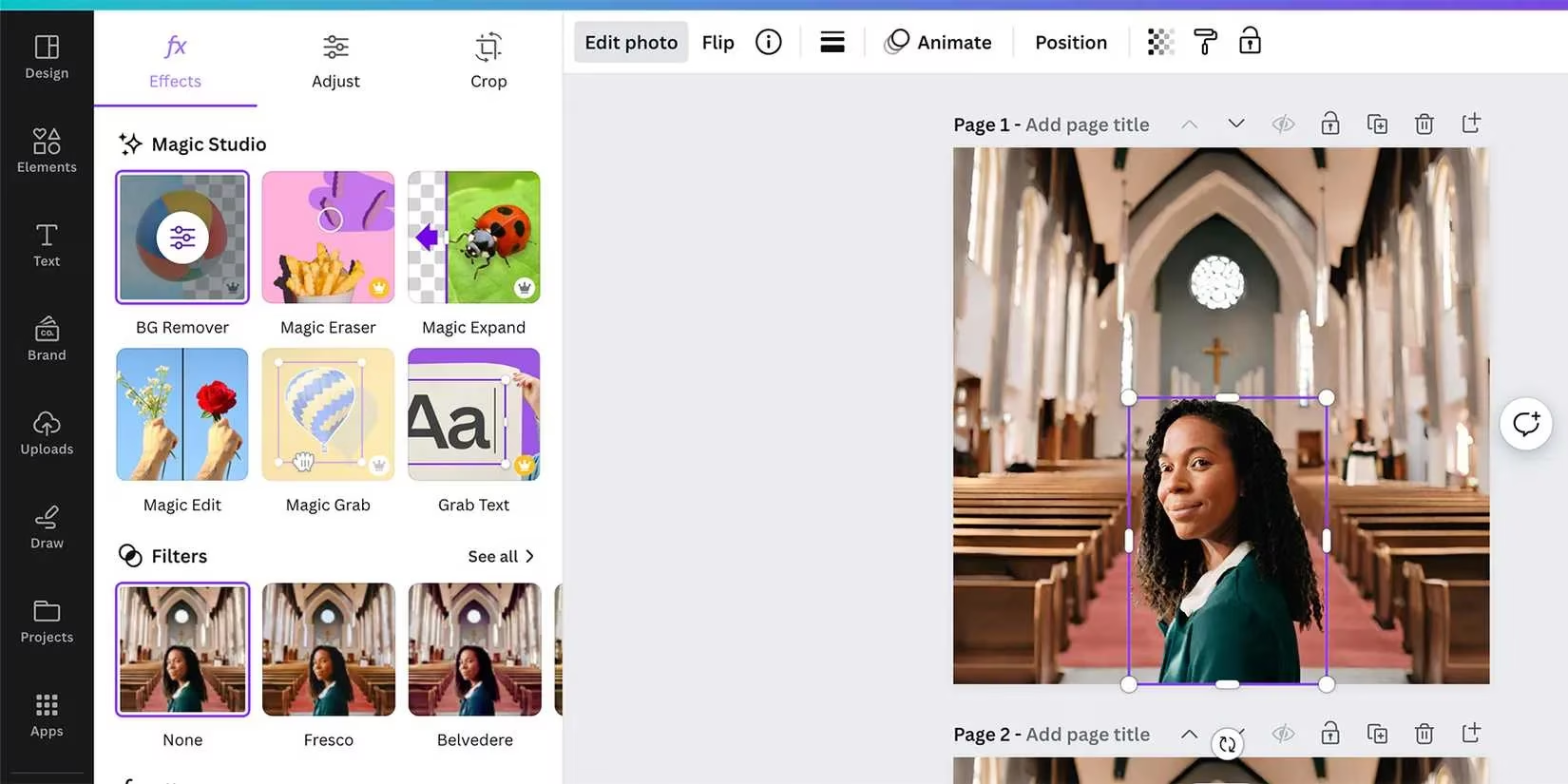
Once grabbed, the subject becomes a movable, resizable layer. The background stays intact beneath it, meaning a creator can reposition the subject, shrink it for a more dramatic sky shot, or even swap in a different background entirely. Layering opens up creative possibilities: placing text between the subject and background, adding a semi‑transparent colour overlay behind the subject to make it pop, or duplicating the subject for a mirrored effect. This single tool turns a flat AI image into a multi‑dimensional composition that feels entirely custom‑made.
🖊️ Making AI Text Readable
Perhaps the most glaring tell of an AI‑generated image is the garbled, pseudo‑writing that appears on signs, book covers, or billboards. Instead of accepting this as a limitation, Canva Pro users can deploy the Grab Text tool. Found inside the Magic Studio section of Edit Photo, Grab Text intelligently recognises the most prominent block of text in the image and converts it from a baked‑in graphic element into an editable text box—complete with the original font style and approximate tilt.
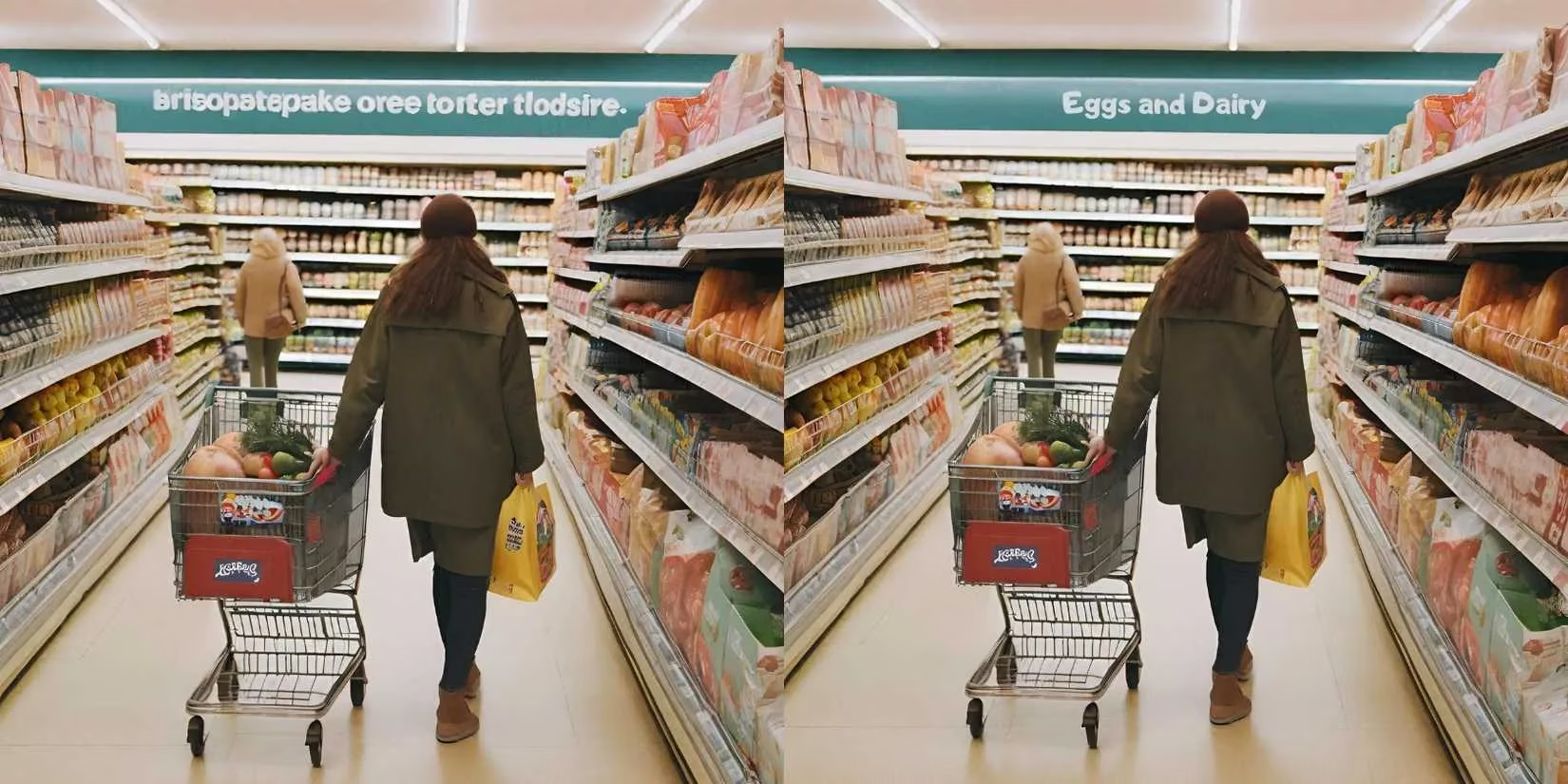
Double‑clicking the purple‑outlined box allows the user to type in coherent English—or any other language Canva supports—instantly erasing the gibberish. For those who need fresh marketing copy, the Magic Write tool can also generate replacement text in a chosen brand voice, provided a Brand Kit has been set up. Tweaking the font, colour, or size is then a matter of seconds using Canva’s standard text controls. The result is an image where every element, including text, feels intentional and authentic.
Putting It All Together
What makes these three features so valuable is that they work directly inside Canva’s editor, without requiring a jump to external software. A user can generate an image, fix its colours, recompose the main subject, and replace any garbled text—all within the same workspace and usually in under ten minutes. As of 2026, these tools have become faster, more precise, and are now available across both desktop and mobile versions, making on‑the‑go editing a reality.
While many AI image platforms have emerged in recent years, Canva’s integrated approach remains a standout because it combines generation with genuine post‑production control. By mastering Color Edit, Magic Grab, and Grab Text, creators can move from being passive prompt‑writers to active visual storytellers. Whether you are building a social media banner, a product mockup, or a whimsical illustration, these techniques can turn an ordinary AI draft into a polished piece of work that truly stands out.
Comments