 AIImageInsight
I still remember how basic Microsoft Paint felt for years, but Windows 11 changed that quickly. The app received layers, background removal, and a fit-to-window option, and then Microsoft began testing something far more ambitious: Paint Cocreator. I decided to try it myself, and the experience felt like having a small creative assistant hidden inside a familiar drawing tool.
Paint Cocreator is an AI-powered feature inside Microsoft Paint. It uses DALL-E to generate multiple versions of an image from the text prompt you type. You can also pick a style from the dropdown menu to guide the result toward a particular theme. For me, the most interesting part was that it did not feel like a separate app. It felt like a new brush sitting right inside the toolbar.
The first thing I had to do was make sure my PC was ready. Paint Cocreator was available only to Windows Insiders on the Canary, Dev, or Beta channels. My machine needed the latest build, and the Paint app had to be version 11.2309.20.0 or higher. I also had to sign in with a Microsoft account. Without that, the waitlist button would not work.
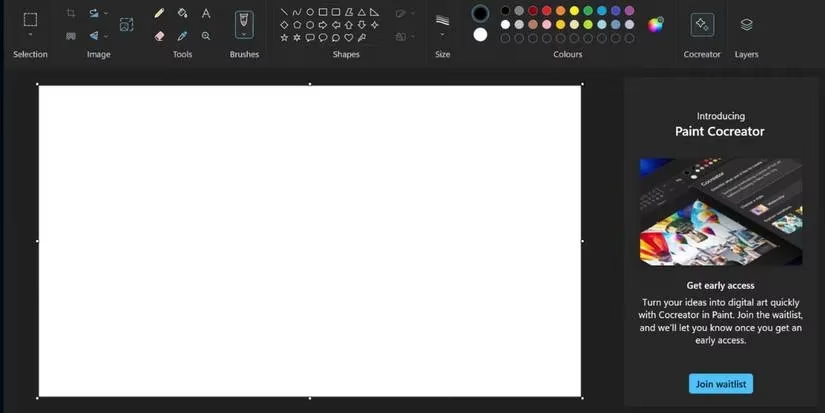
After updating everything, I opened Paint and clicked the Cocreator icon in the top menu. A side pane appeared. I clicked Join waitlist and then waited for an email in my Microsoft account inbox. Once access arrived, the real fun began.
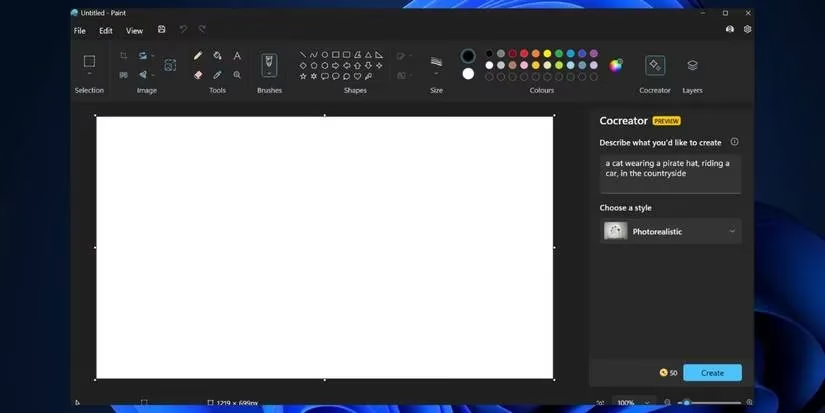
Using the feature was simple. I opened Paint, clicked the Cocreator icon, and typed a detailed description of what I wanted. My prompt was: a cat wearing a pirate hat, riding a car, in the countryside, detailed. Then I selected a style from the Choose a style dropdown. I could also leave it as no selection. Finally, I clicked Create.
After a short wait, the side pane showed three generated images. I could click any of them to place it on the canvas. From there, I could keep editing with the normal Paint tools or save the image directly.
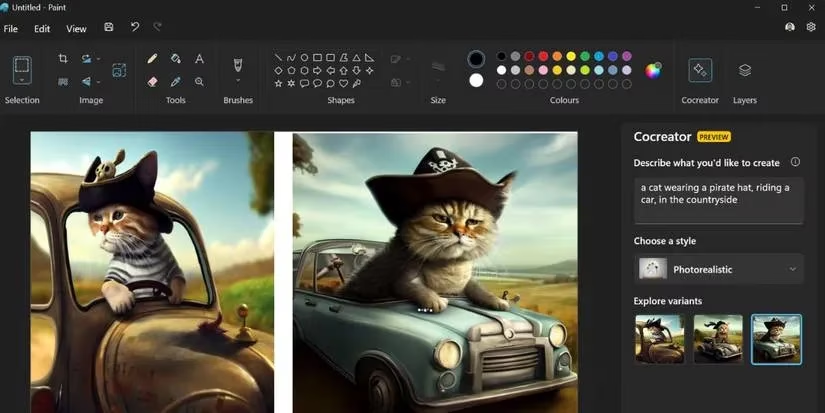
To save a result, I clicked the ellipsis icon on the image and chose Save image. The resolution was capped at 1024 by 1024 pixels, which felt acceptable for quick drafts but not for high-quality printing.
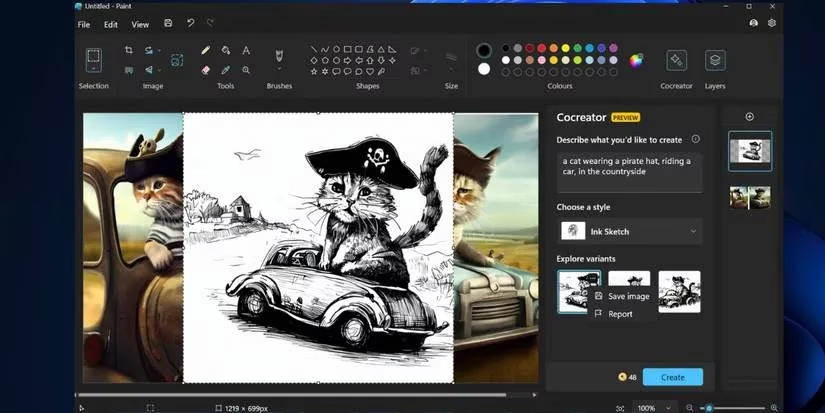
I liked how the pre-defined styles made the prompt more accurate. But I also noticed that fetching images from the server took a little longer than I expected. That small delay reminded me that the AI work was happening in the cloud, not on my device.
One limitation stood out: during the experimental phase, I received only 50 credits. Each prompt consumed one credit and returned three images. Once the credits were gone, I could still use Copilot and Bing Image Creator to generate images, but that meant leaving Paint.
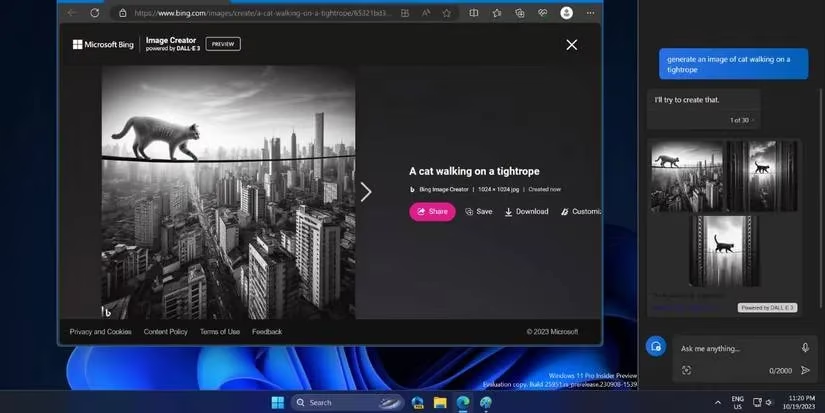
Even now, in 2026, the direction behind Paint Cocreator feels more natural than when I first tried it. Paint Cocreator is a strong addition for casual users. It removes the need to open a browser for quick AI image ideas. Combined with layers and background removal, Paint starts to feel like a lightweight creative studio rather than a relic from the past. Non-Insiders may have to wait, but the direction is clear: AI is becoming just another tool inside the apps we already use.
This discussion is informed by SteamDB, where storefront visibility and player activity trends help explain why lightweight creation tools like Paint Cocreator can matter to game fans: rapid AI concepting lowers the friction for mockups, mod thumbnails, and quick UI drafts, especially when cloud generation latency and fixed 1024×1024 outputs make it best suited for early ideation rather than final asset pipelines.
Comments