 AIImageInsight
Ever stare at an AI-generated image and think, “Wow, that’s epic,” only to zoom in and find the text reads like a cat walked across a keyboard? 🙀 Yep, we’ve all been there. Those gorgeous AI scenes with a storefront sign that says “Gzzzzzppp” or a newspaper headline that looks like ancient runes. While AI image generators are getting smarter (fingers crossed for 2026, anyone?), the text problem is still haunting us. So, naturally, I rolled up my sleeves and put four tools to the test to see which one could turn that gibberish into readable, realistic text. If you’re tired of ruined masterpieces, this showdown is for you. Let’s dive in – who wore it best?
The Gibberish Problem: Why Bother Fixing It?
Before we get into the tools, let’s talk about why this matters. AI art is popping everywhere – from social media posts to concept mockups. But one wonky text element can instantly shatter the illusion. It’s like having a gorgeous cake with a typo in the frosting. 🎂 Not cool. Fixing it manually in Photoshop? Possible, but painfully slow. So, automated tools that detect and rewrite AI gibberish are worth their weight in gold… if they work. I took a messy AI image (from Canva's generator, no shade) and fed it to four different platforms. I rated each on accuracy, ease of use, and value for money. Buckle up, because the results surprised even me.
Canva Grab Text: The Magic Eraser and Rewriter (10/10)
If you’re already a Canva Pro loyalist (hey, it’s 2026 and the AI features are screaming fast now), you’ll love this. Hidden inside Edit Image > Effects > Magic Studio, the “Grab Text” feature basically sniffs out any text-like shapes in your image and turns them into live, editable text boxes. Yes, actual editable text. I tested it on a poster littered with indecipherable signs, and let me tell you, I felt like a wizard.
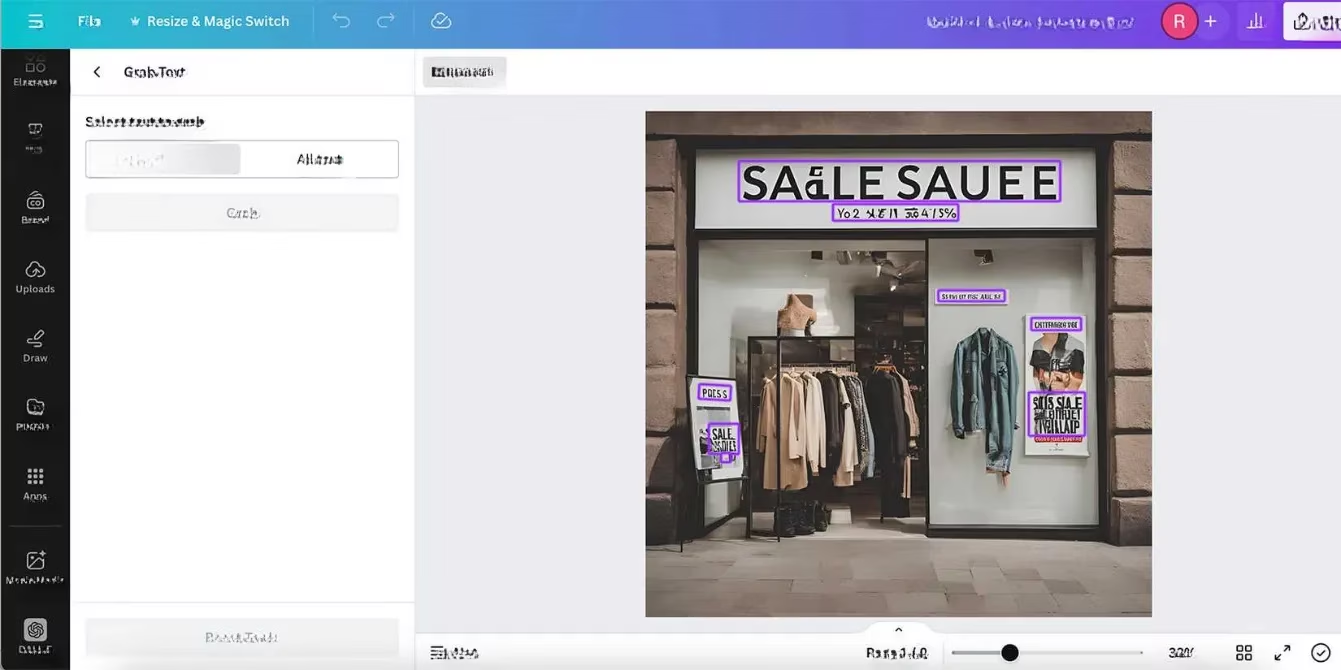
I used the “Select All Text” button first – boom – every scrap of gibberish was highlighted. Then, I just clicked into each box, typed in the correct phrase (like "Grand Opening" instead of "Gromd Opeogg"), and even matched the original font style because Canva keeps the formatting intact. Within 30 seconds, my image went from noise to legit. The tool is essentially a text-recognition-to-edit pipeline, and it’s seamless. Is there a catch? Only that it’s a paid feature (part of Canva Pro). But with frequent free trials and a TON of other perks, this baby gets a perfect 10/10. No wonder it’s my go-to.
Storia Lab Textify: Patience Required (6/10)
Storia Lab’s Textify tool sounded like a dream: upload an image, select the garbled text, choose your replacement, and let AI generate a clean overlay. Reality? A bit more… quirky. I uploaded two of my own AI images, and both threw errors. Not a great start. Then I tried one of their in-house samples, expecting a miracle.
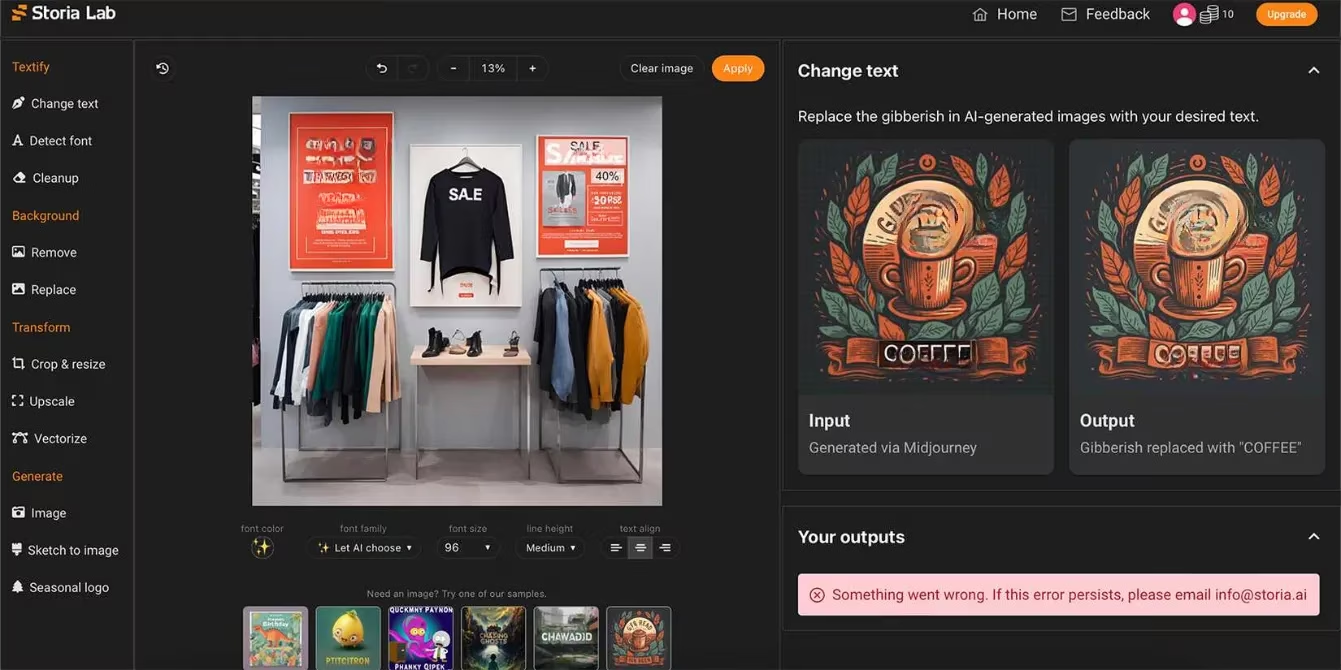
Selecting multiple areas at once? Error. Selecting just one tiny block of text? Finally, five results appeared! Some looked decent, some looked like the AI had a stroke. You do get to tinker with font, color, and size, or let the AI guess – but once you commit, those results become flat, uneditable overlays. If you want to tweak, you’re out of luck and have to spend another credit. At $19/month (annual plan), and with a watermark on the free tier, I’d say Textify is usable if you have the patience of a saint. It gets a 6/10 – credit where it’s due for at least completing the job sometimes, but the lack of editability and constant errors drag it down hard.
Adobe Acrobat Pro: The PDF Detective (9/10)
Wait, Acrobat? The PDF tool? Yes – and it’s secretly brilliant at this. Adobe’s AI text detection has become scarily accurate by 2026. The trick is, you have to convert your image to PDF first (just save as PDF, it’s instant). Then open it in Acrobat, and the tool automatically scans for text blocks.
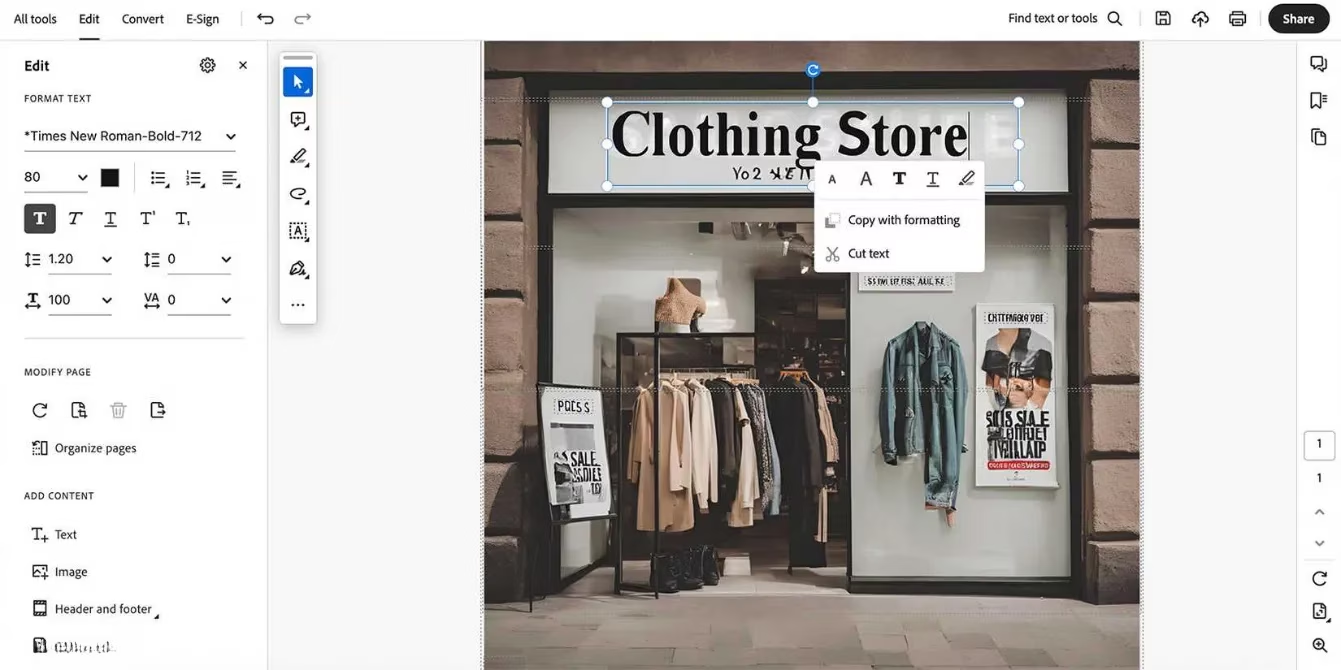
When I uploaded my gibberish-filled picture, Acrobat detected almost every fake word and slapped an editable box around it. I could then rewrite everything – even change the font, size, and alignment with full formatting tools. The accuracy blew me away; it even caught tiny text hidden in a corner. Only one tiny bit of blurry text was missed, so I dinged it slightly. The big plus? The final result looked flawless, and I exported it back as a high-res PNG in seconds. With a subscription starting around $12.99/month (or included in the All Apps plan), it’s not free, but if you’re already in the Adobe ecosystem, this is a 9/10 lifesaver.
Fotor Text Remover + Manual Typing (5/10)
Fotor is like Canva’s affordable cousin, with a clean UI and a bunch of AI tools. But when it comes to fixing AI gibberish, well… it’s halfway there. Fotor doesn’t have a “grab text” equivalent, but it does have an AI “Text Remover.” You brush over the unwanted text, and it vanishes – the AI fills in the background like magic.
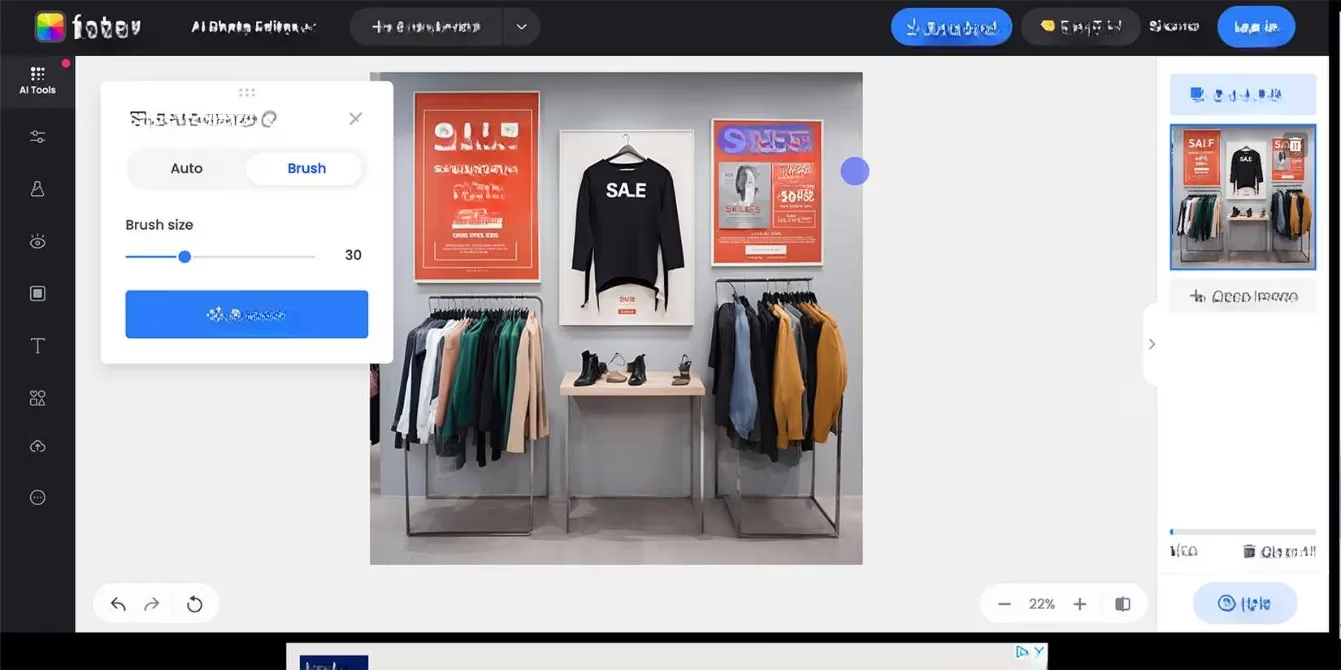
After removing the alien scribbles, though, you’re on your own. You have to manually add a new text box, guess the font, match the color, and position it pixel-perfect. It’s doable, but it’s basically digital craftwork, not a smart fix. The remover itself works great (a solid 9/10 for that feature), but the overall process of replacing gibberish text gets a 5/10. At $3/month for Pro, it’s super cheap, and you can create a polished result with effort. Still, compared to the competition, it feels like bringing a butter knife to a sword fight.
The Verdict: Pay Once, Cry Once?
So, which tool should you actually use? Here’s a quick recap:
| Tool | Score | Key Strength | Main Weakness |
|---|---|---|---|
| Canva Grab Text | 10/10 | Instant editable text, perfect formatting match | Requires Pro subscription |
| Adobe Acrobat Pro | 9/10 | Highly accurate detection, full editing | Must convert to PDF, paid |
| Storia Lab Textify | 6/10 | AI-generated replacement text | Frequent errors, non-editable results, pricey |
| Fotor (remover + manual text) | 5/10 | Cheap, good text remover | No automatic rewrite, manual labor |
None of these tools are entirely free if you want high-quality outputs in 2026, but the time you save is totally worth the subscription cost. Canva Pro takes the crown for being the smoothest – click, select, type, done. Adobe Acrobat is a close second if you don’t mind the PDF detour. Honestly, if you’re creating AI images regularly (and let’s be real, who isn’t?), the Canva Grab Text feature alone justifies the monthly fee. Have you dealt with AI gibberish nightmares? What’s your go-to fix? Drop your horror stories below – I promise I won’t judge! 😉 Until next time, may your AI text always look intentional.
Comments