 AIImageInsight
The pursuit of the perfect image usually required a mastery of sliders, layers, and color theory. But as of 2026, artificial intelligence has shouldered much of that burden, promising a shortcut from a single click. To see how far automated editing has come – and where it still stumbles – one photographer embarked on a practical experiment, putting several popular AI-powered tools through their paces. The results reveal that while the machine does most of the heavy lifting, a human touch is still needed to finesse the final look.
Google Photos requires a One subscription for its AI perks, but are they worth it? Two features were tested: Auto-Enhance and the sky editing presets. The starting image was a bright landscape with a naturally vivid sky.

The Auto-Enhance tool behaved with admirable restraint. Instead of an overcooked HDR nightmare, it subtly brightened the image and added a gentle punch to the colors. The before-and-after comparison showed that the edits were almost imperceptible to a casual glance, yet the overall impression felt cleaner. However, one might ask: does such a light touch actually save time, or does it merely nudge the shot toward what the camera should have captured in the first place? The answer depends on the original. Overexposed or flat files saw more dramatic improvements, while already balanced scenes barely shifted.

Then came the sky editing presets, a feature many photographers approach with skepticism. Can a few taps convincingly replace a clear sky with a stormy one? The answer turned out to be pleasantly surprising. The user selected the "Stormy" preset on the same sun‑drenched image. Rather than a clumsy cutout and paste of grey clouds, Google Photos applied a desaturation and darkening effect that looked like a natural shift in weather. It functioned more like a sophisticated filter, preserving the original geometry while altering the mood.
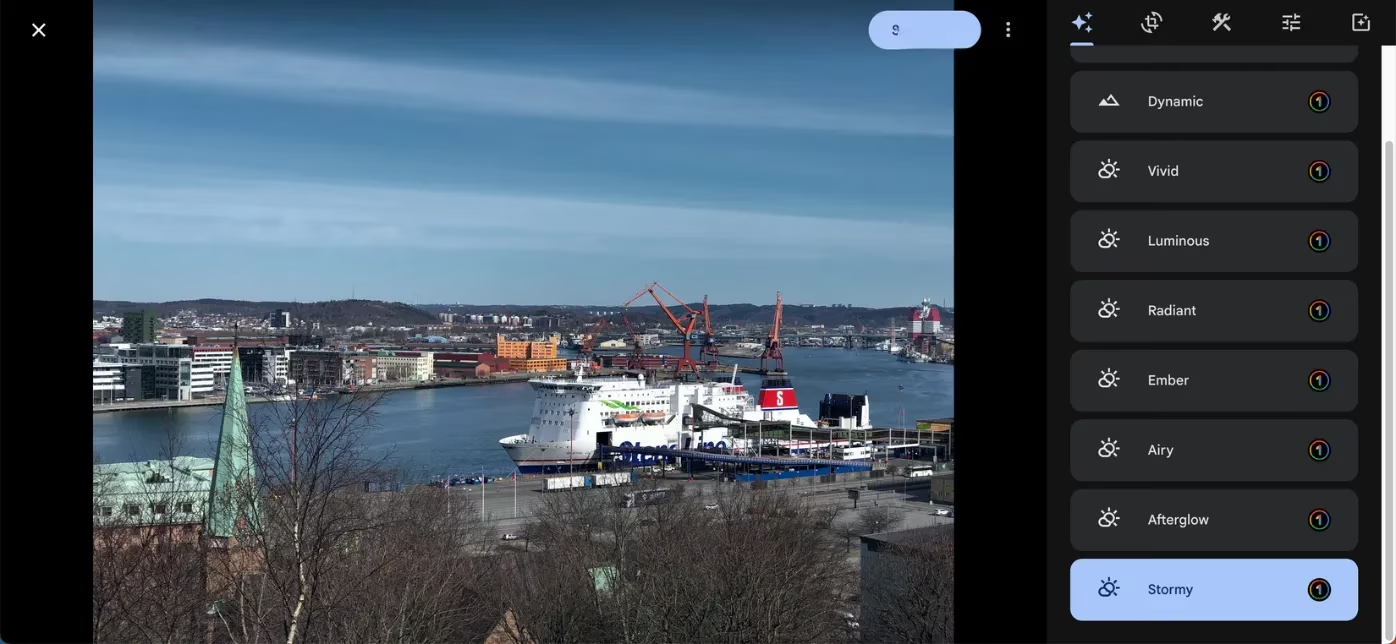
Other presets, such as Afterglow, fared less impressively on daytime shots, proving that these tools still require a photographer’s compositional judgment. A glowing twilight overlay on a midday sky simply felt out of place. Yet for images already captured during golden hour, the same preset might produce stunning results. The lesson was clear: AI can enhance an ideal, but it cannot rescue an unwise choice.

Moving to a dedicated editor, Pixlr promised Photoshop‑adjacent features at no cost. A cityscape taken in broad daylight was uploaded to test Super Sharp, Noise Removal, and Generative Fill.
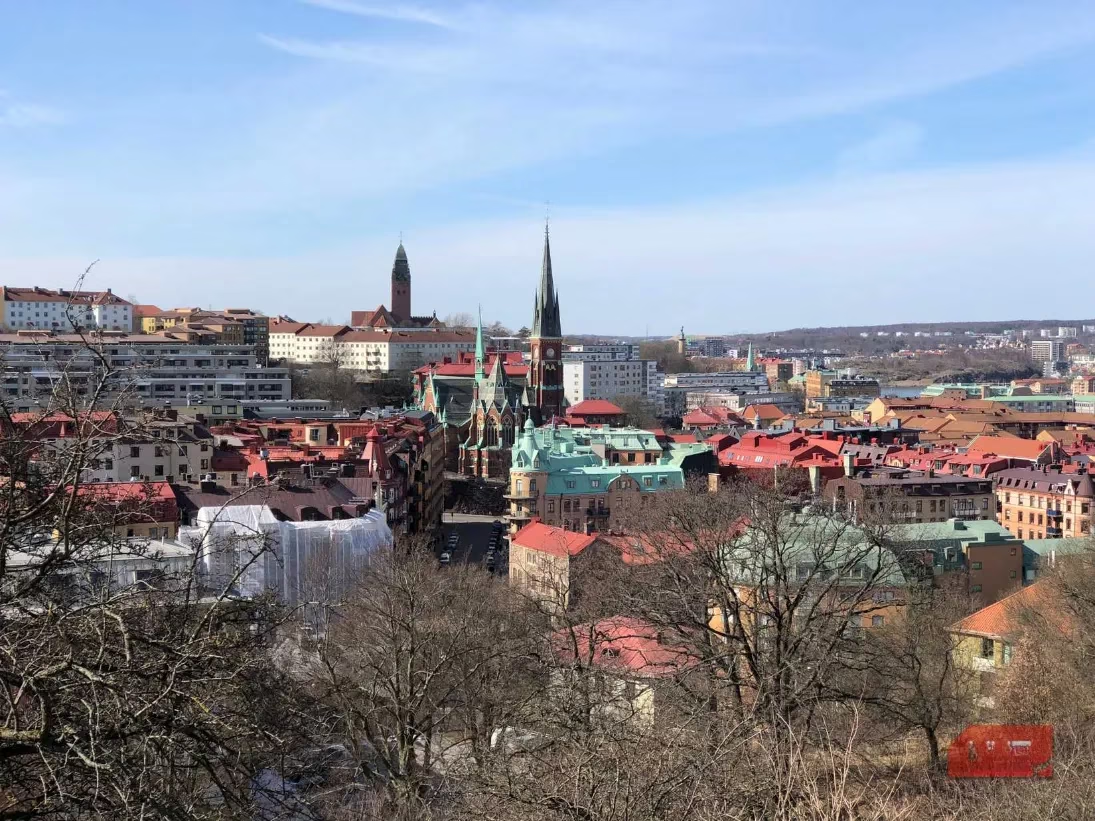
Super Sharp added a noticeable crispness to edges, but users should be aware that Pixlr compresses images significantly upon upload. This compression instantly negates some of the sharpening gains, making the feature a double‑edged sword for anyone chasing perfect resolution. The Noise Removal tool, on the other hand, performed admirably when zoomed in. Fine grain that had been scattered across the sky was smoothed away without smearing building details into a waxy mess. For beginners who feel overwhelmed by manual noise reduction in professional software, Pixlr offers a friendly entry point, even if the dedicated tools found in paid alternatives like Photoshop remain more refined.
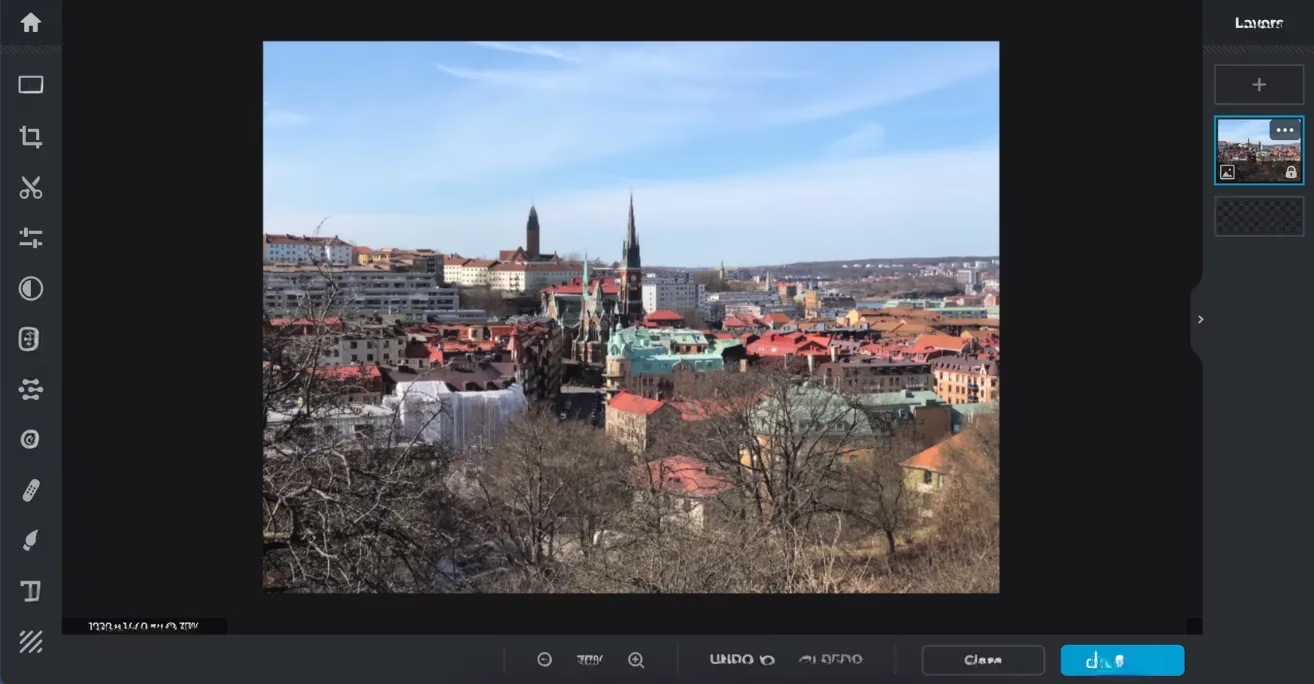
Then came the hype and the headache: Generative Fill. The goal was simple – replace the clear sky with an overcast one using a plain‑language prompt. The first attempt requested “gray clouds” without a dramatic storm. The result was a bizarre patchwork that bore no resemblance to a natural sky. A clearer prompt – “replace the sky with an overcast day” – fared no better, adding odd artefacts that would take as long to fix manually as the original edit.
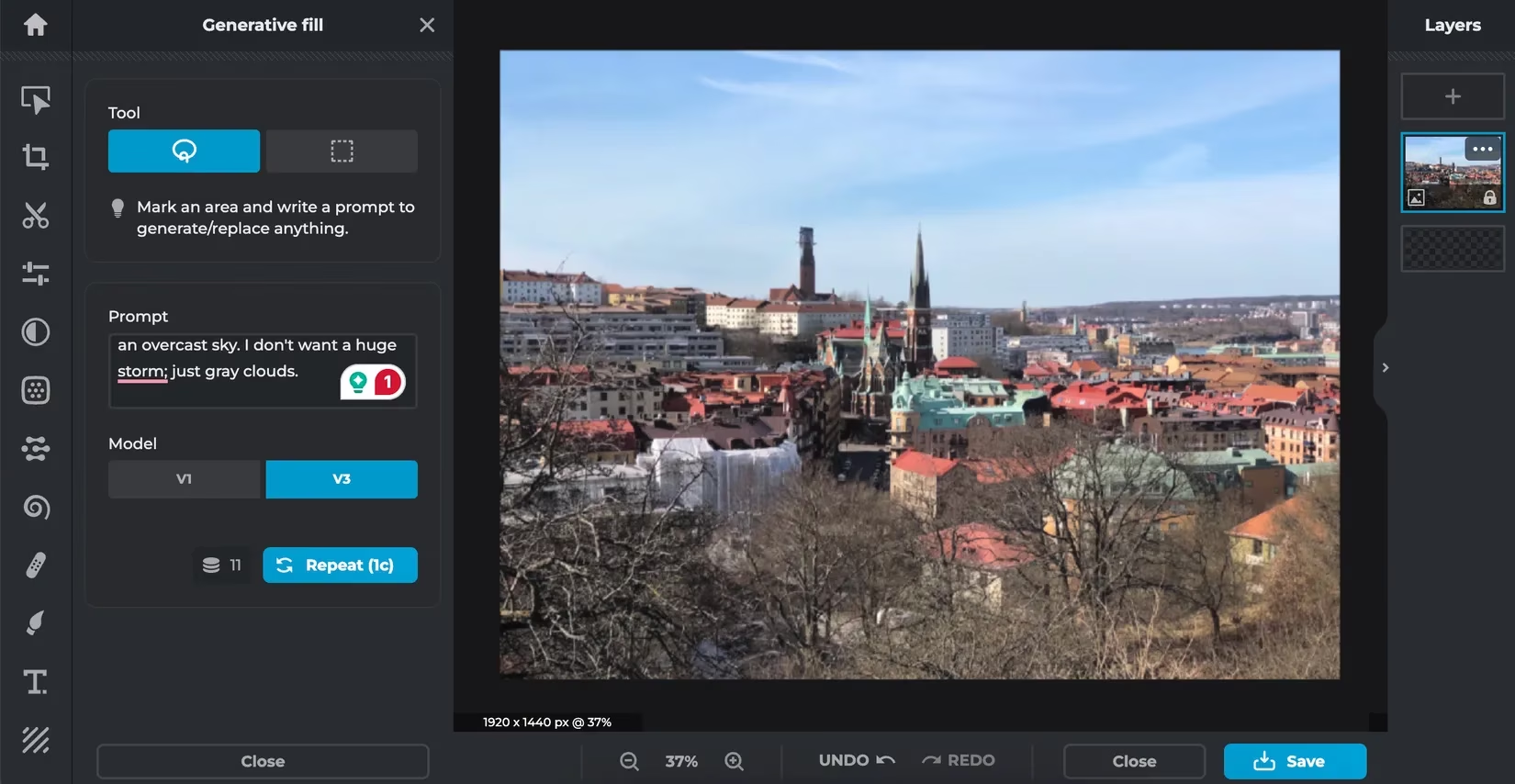
For anyone tempted to rely on AI‑generated backgrounds, the evidence suggests looking elsewhere. Adobe Express, with its Firefly engine, handled similar tasks with far greater accuracy, proving that generative editing is still unevenly distributed across the software landscape.
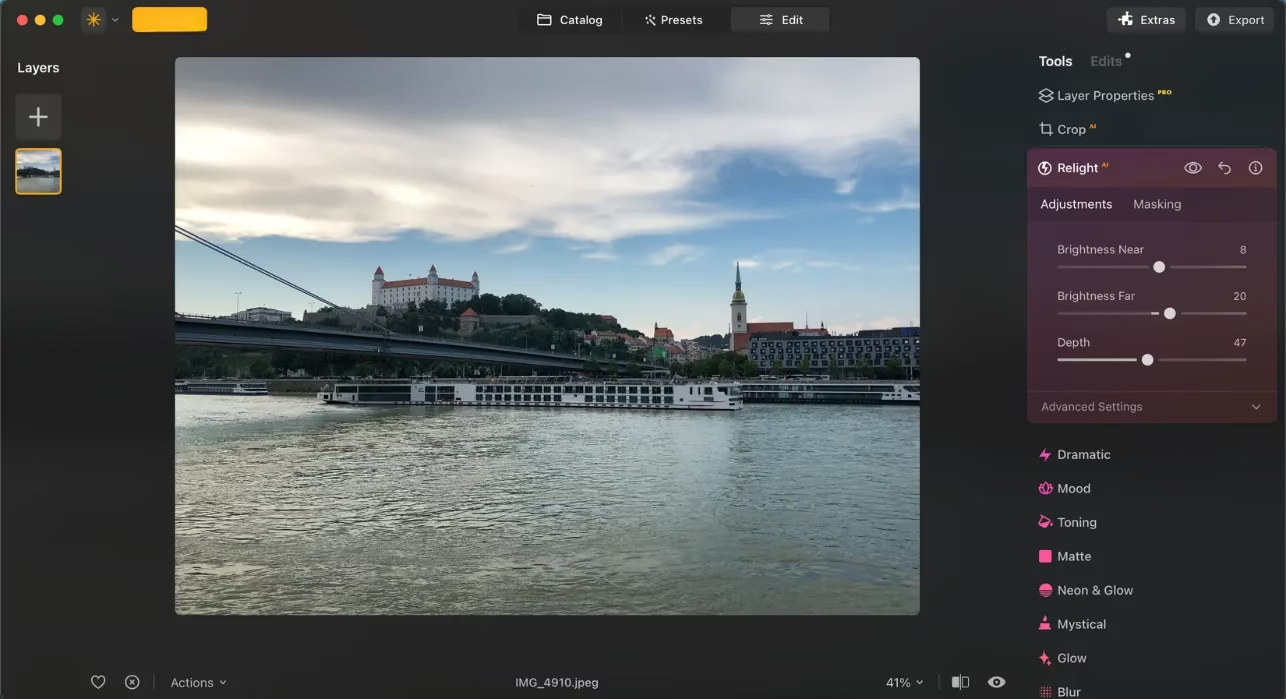
Luminar Neo, a desktop app celebrated for its AI prowess, offered a more polished experience. The AI Enhance tool came with a strength slider, a small addition that made a world of difference. On a photo of an outdoor scene with a pale sky, the enhancement could be dialed back to avoid an artificial look, while still lifting shadows and defining clouds.

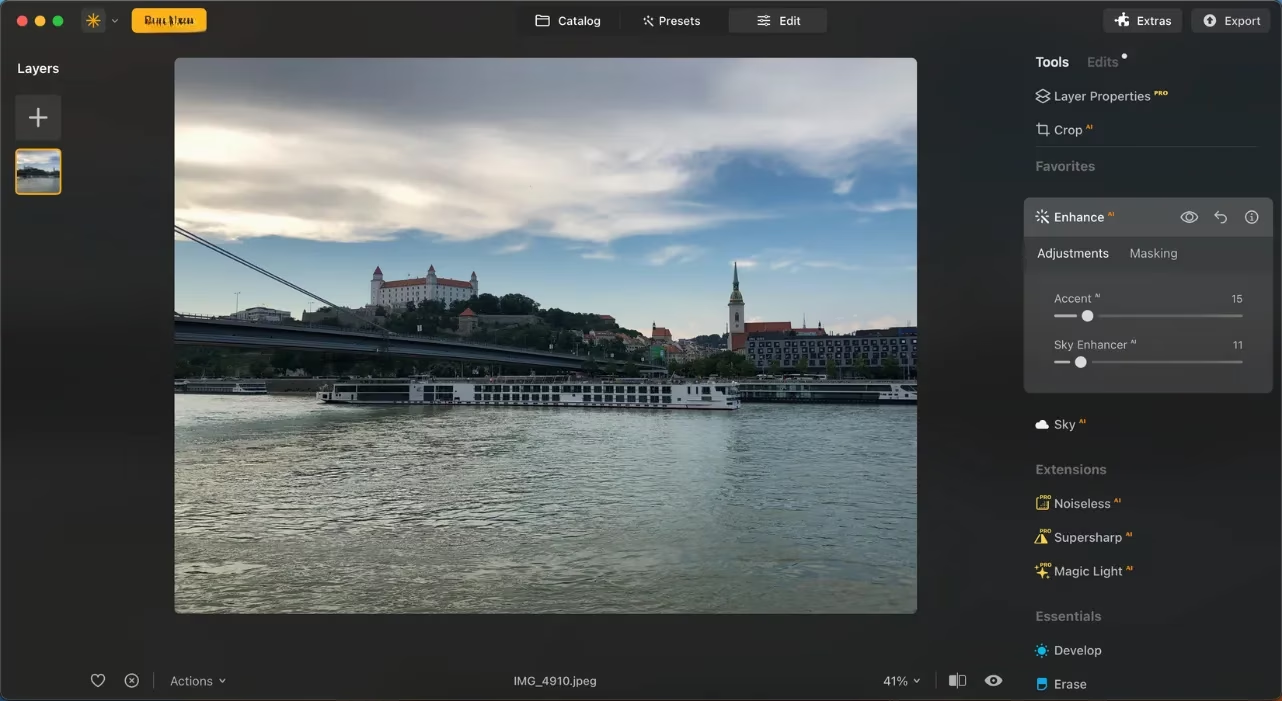
The Relight feature took a different approach, introducing three sliders: Brightness Near, Brightness Far, and Depth. Depth, in particular, allowed the photographer to target only distant regions – brightening a dim backdrop without blowing out a perfectly exposed foreground. It replicated the nuanced control of a radial gradient in Lightroom, but with fewer clicks. The result was a subtle illumination that felt organic, as if the sun had shifted just a few degrees.
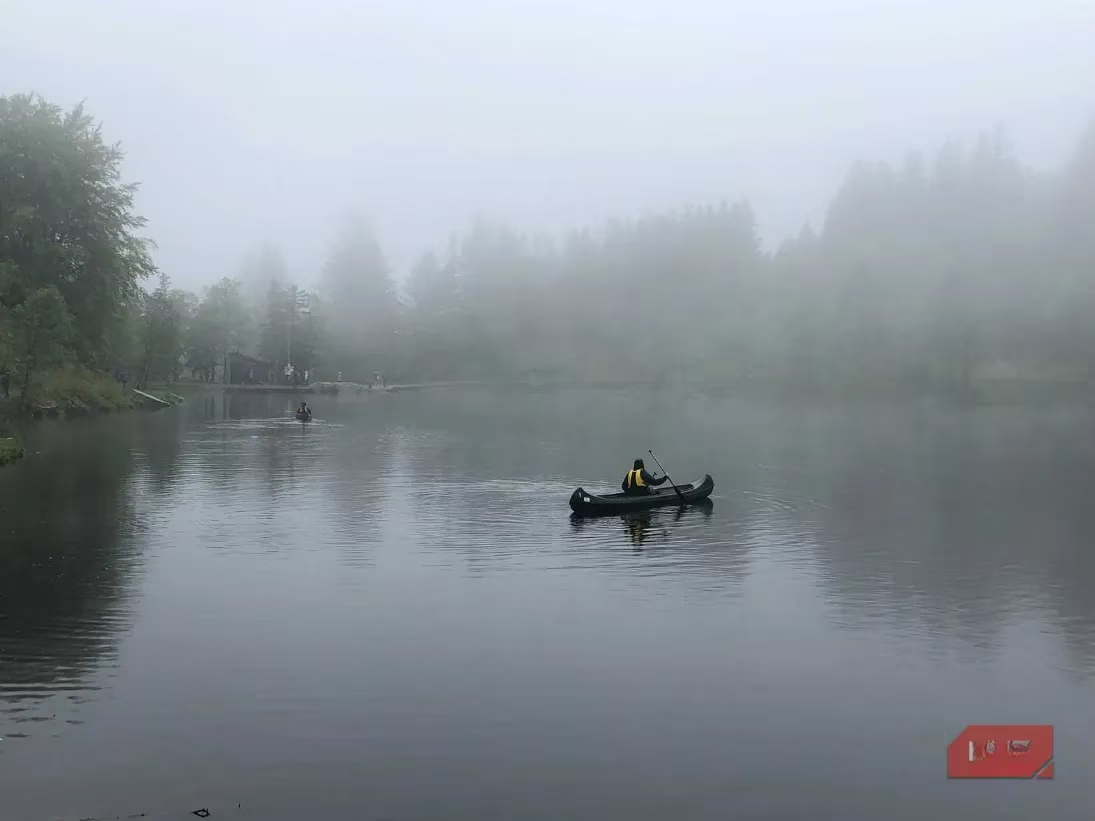
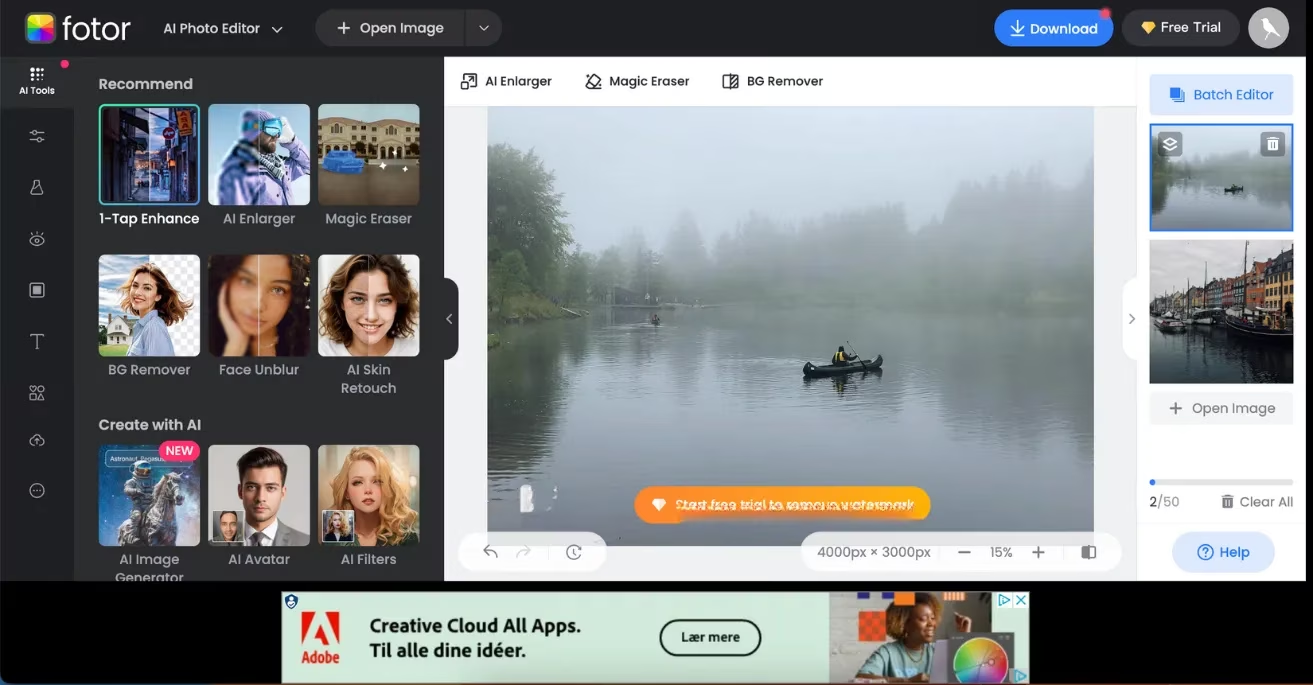
For a quick, no‑frills alternative, Fotor’s 1‑Tap Enhance was tested on an image of a kayaker on a lake. The feature mirrored Google Photos’ subtle approach, mainly tweaking brightness. The downside was a watermark that Fotor plasters onto the output. Clever users can get around this by deliberately framing a shot they intend to crop later, but it remains an annoyance for those who want a clean final image in one go.
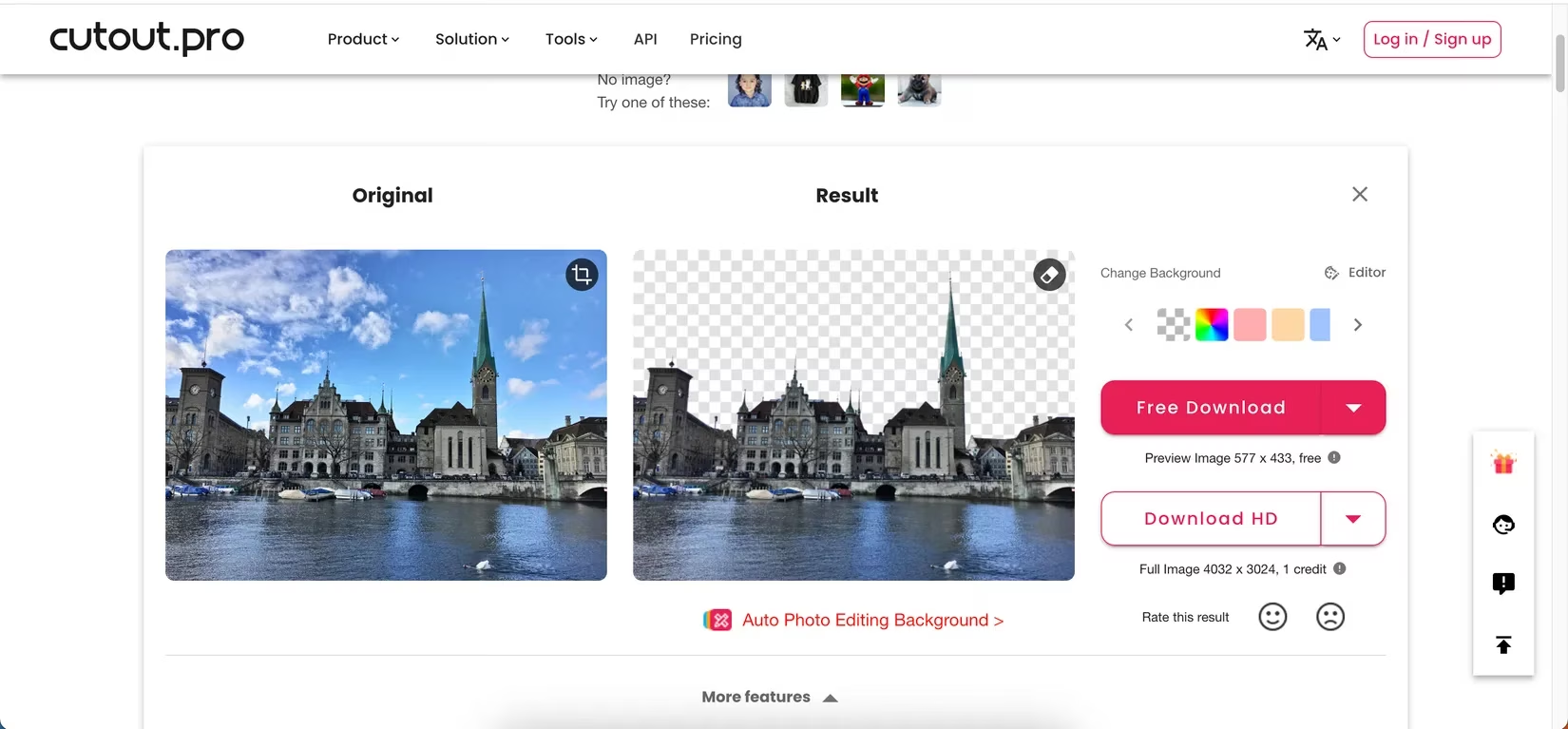
Lastly, background removal was handled by CutOut Pro, a tool that needed only an upload before delivering a clean PNG in seconds. The cutout was surprisingly accurate, with no jagged edges around complex outlines. For anyone who dreads the pen tool or lasso selection, this kind of automated extraction feels like magic.
Are these AI tools ready to replace skilled manual editing entirely? Not quite. But they have drastically shortened the distance between a raw file and a shareable image. The photographer who understands when to accept a machine’s suggestion and when to override it will get the most out of this technology. With many of these features available in free or trial versions, there is little reason not to experiment – whether one is rescuing a cloudy snapshot or merely satisfying a curiosity about a stormy sky.
Comments